
You started with one script in Google Docs. Then came the episode outline, the sponsor read, the blog draft, the social snippets, the research notes, the client comments, and the folder called “new final actual final.” At some point, a tool that felt clean and fast started feeling like a junk drawer with permissions.
That’s a normal growth problem. Google Docs changed collaborative writing when it launched on March 11, 2008, introducing real-time multi-user editing, auto-saving, and revision history that pulled a lot of teams away from static file sharing and offline-only habits, as noted in ClickHelp’s overview of Google Docs alternatives. It’s still a great default. It just isn’t always the right operating system for a growing content business.
If your workflow now includes script approvals, editorial handoffs, reusable templates, content libraries, or compliance headaches, you probably need a website like Google Docs that fits the way your team works. Some tools are better for publishing systems. Some are better for structured research. Some are better when clients, contractors, and internal editors all touch the same assets.
A strong editor doesn’t just help you write. It supports your entire effective content creation workflow, from idea capture to repurposing to archive retrieval.
Here are 10 strong options, with the trade-offs that matter when you’re scaling from “I write stuff online” to “this content operation pays people.”
1. Microsoft Word for the web
If your team still lives in .docx, stop fighting that reality. Microsoft Word for the web is the most painless option for people who want browser-based collaboration without breaking Office formatting every time a file changes hands.
A lot of creator businesses hit this issue once outside partners show up. Agencies, publishers, legal reviewers, and executive teams often still expect Word files. Google Docs can import and export them, but formatting drift is common when a document gets complex. Word for the web is better when round-trip compatibility matters more than having the slickest cloud-native experience.
Where it fits best
Word for the web works well for script reviews, manuscript editing, and stakeholder approval flows where comments and tracked changes still drive the process. It also makes sense if your files already sit in OneDrive or SharePoint and nobody wants another storage layer.
- Best use case: Teams exchanging polished drafts with clients, editors, or publishing partners.
- Big advantage: Browser access without giving up the Microsoft file standard.
- Main drawback: The web app doesn’t include every desktop feature, so advanced formatting jobs still push you back to full Word.
One practical upside is familiarity. People know where comments live. They know what “Review” means. They know how to hand back a revised file without turning the collaboration process into a training session.
What works and what doesn’t
What works is the handoff. If your business produces documents that leave your internal workspace, Word for the web is dependable. What doesn’t work as well is using it like a full content hub. It’s a document editor, not a knowledge system.
For creators building repeatable editorial systems, the bigger issue usually isn’t writing quality. It’s document chaos. That’s why structure matters long before the draft is “done.” Contesimal’s guide on structure in writing is useful if your team keeps producing good documents that are impossible to reuse later.
For the tool itself, start with Microsoft 365 for the web.
Practical rule: Choose Word for the web when file fidelity matters more than workspace flexibility.
2. Notion
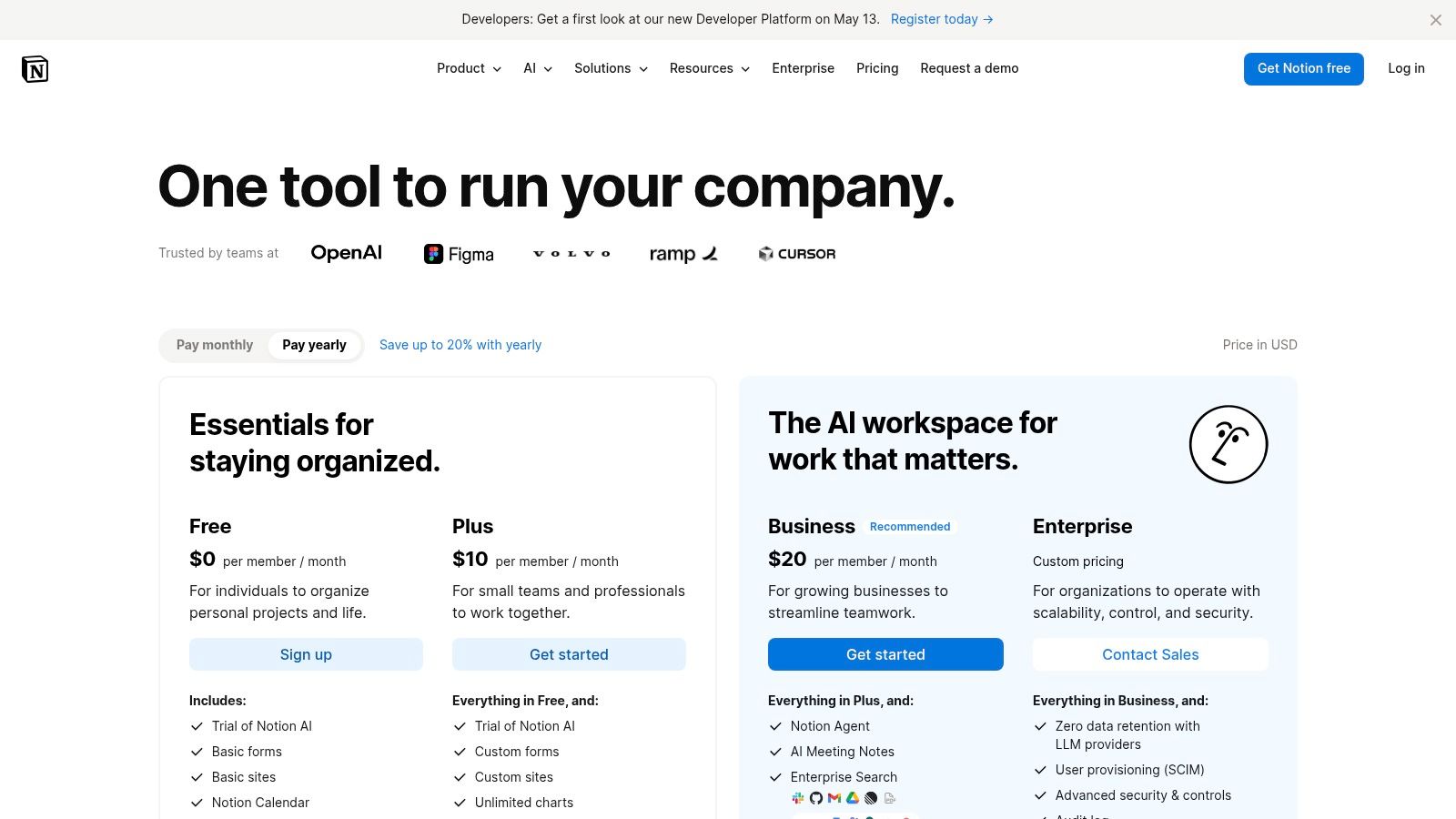
A lot of creator teams hit the same wall at some point. Scripts live in one tool, briefs in another, the content calendar in a spreadsheet, and the “final” version of a doc exists in three tabs with three different comments. Notion gets popular because it pulls that sprawl into one working system.
For a solo creator, that can mean keeping ideas, outlines, drafts, and publishing checklists in one place. For a growing content business, it usually means something bigger. The script is tied to the production schedule, the research notes, the asset list, and the approval status, so the team is not hunting through disconnected tools just to publish one piece.
Why creators keep building in it
Notion works best when writing is part of a repeatable workflow, not a one-off document. A blog draft can sit beside the keyword brief. A YouTube script can link to sponsor notes, thumbnail direction, and repurposing tasks. A content lead can check status without asking the writer for an update every six hours.
That connected setup is the core value.
- Best use case: Editorial systems, content libraries, and production pipelines that need docs, databases, and team context in one workspace.
- Big advantage: You can shape the workspace around your actual process instead of forcing your process into a rigid editor.
- Main drawback: Without rules, the workspace gets messy fast and stays messy.
That last trade-off matters more than Notion fans like to admit. I’ve seen teams build beautiful dashboards that impress everyone on Monday and confuse everyone by Friday. If every department creates its own naming rules, template logic, and status labels, the tool starts slowing work down instead of organizing it.
The fix is boring, which is why it works. Standardize templates. Decide who owns each database. Set archive rules early. If your team wants docs to function as a reusable company brain, it helps to understand what a knowledge management system actually needs to do before you start stacking pages and databases.
Notion is still one of the better options for creators who are scaling from “I write stuff online” to “we run a content operation.” It handles planning and context better than a plain web doc. It handles strict document control worse than tools built for formal review environments.
If your handoffs are getting messy across writers, editors, strategists, and producers, this piece on project management collaboration is a smart companion read before you build your workspace.
Try it directly at Notion pricing.
Notion fits creator businesses that want one place for drafting, planning, and storing institutional knowledge. It is less comfortable for teams that need rigid controls and little room for workspace improvisation.
3. Coda
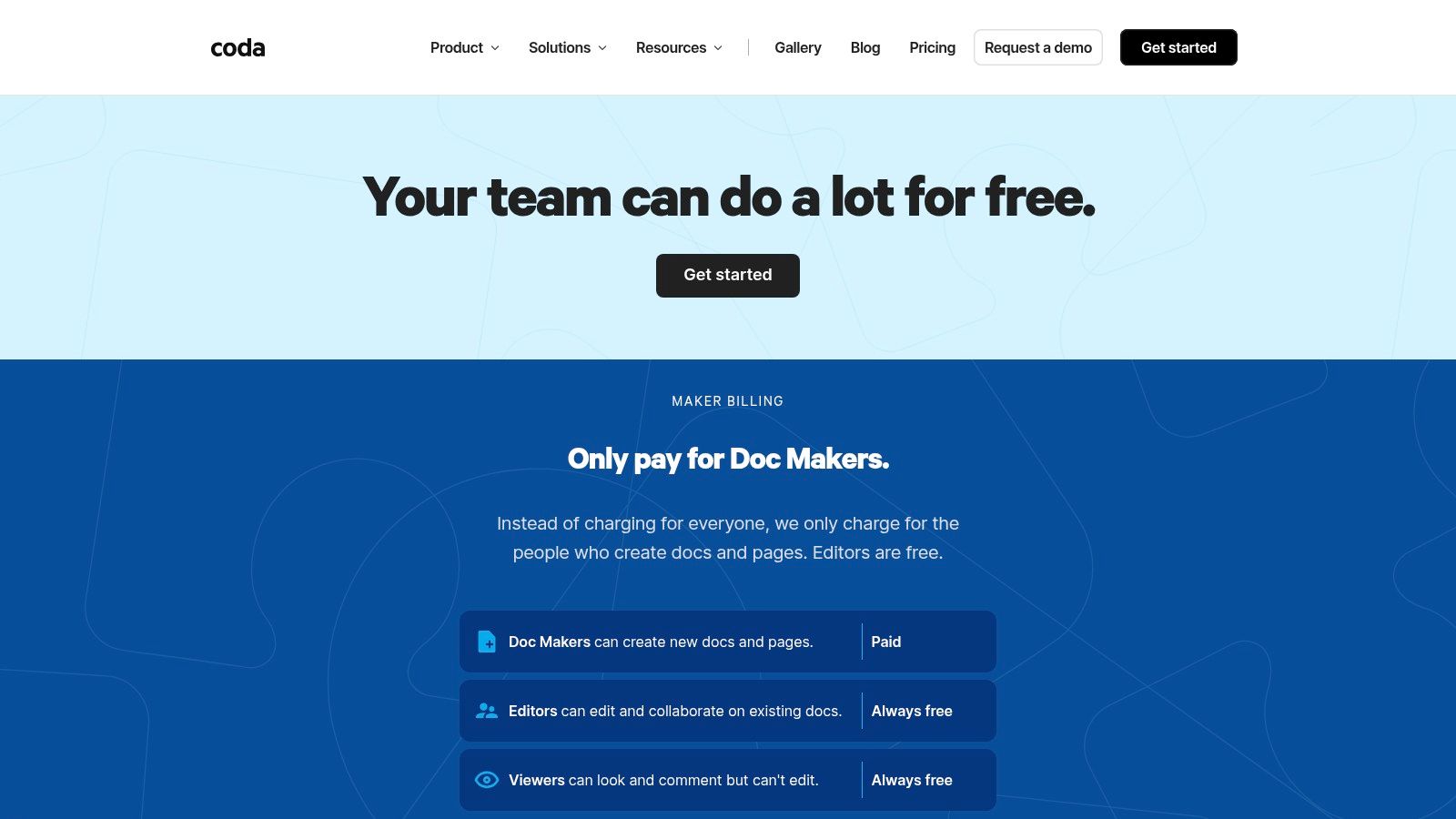
A plain doc works fine until your script, review notes, publish date, owner, sponsor details, and production status all need to live together. That is the point where Coda starts making sense.
Coda treats the document as the operating layer. For content teams, that changes the job description of a "doc." A video brief can hold the script, approval checklist, asset links, due dates, and automations in one place. A newsletter system can track issue status, segment notes, and reusable blocks without sending the team into three different tools.
Why Coda works for creator workflows
Coda is a strong fit for teams building repeatable formats. If you run weekly episodes, recurring campaigns, client deliverables, or a multi-step editorial pipeline, it helps to have the workflow inside the document instead of taped onto the side with extra apps.
I like Coda best when one or two operators build the system and everyone else uses it. That setup plays to its strengths.
- Best use case: Content operations where docs need to trigger work, track status, and store context.
- Big advantage: Templates, tables, buttons, and automations can turn a script or brief into a working production asset.
- Main drawback: The setup gets complicated fast if nobody owns the structure.
That last point matters more than Coda fans sometimes admit. Teams can build smart-looking docs that save hours each week. They can also build tangled systems full of hidden logic, confusing buttons, and too many views. If your workspace is becoming a mix of content library, workflow engine, and team wiki, it helps to define what a knowledge management system needs to handle before you start layering on more tables and automations.
Where it can slow people down
Writers who want a blank page, comments, and clean collaboration may find Coda heavier than necessary. The tool rewards structure and process design. It is less comfortable for teams that just want fast drafting with minimal setup.
That trade-off is real. Coda can replace a messy stack of docs, trackers, and lightweight workflow tools, but only if someone maintains the system with discipline. Without clear templates and ownership, the flexibility that makes Coda useful can also make it harder to use.
You can review plans at Coda pricing.
4. Atlassian Confluence
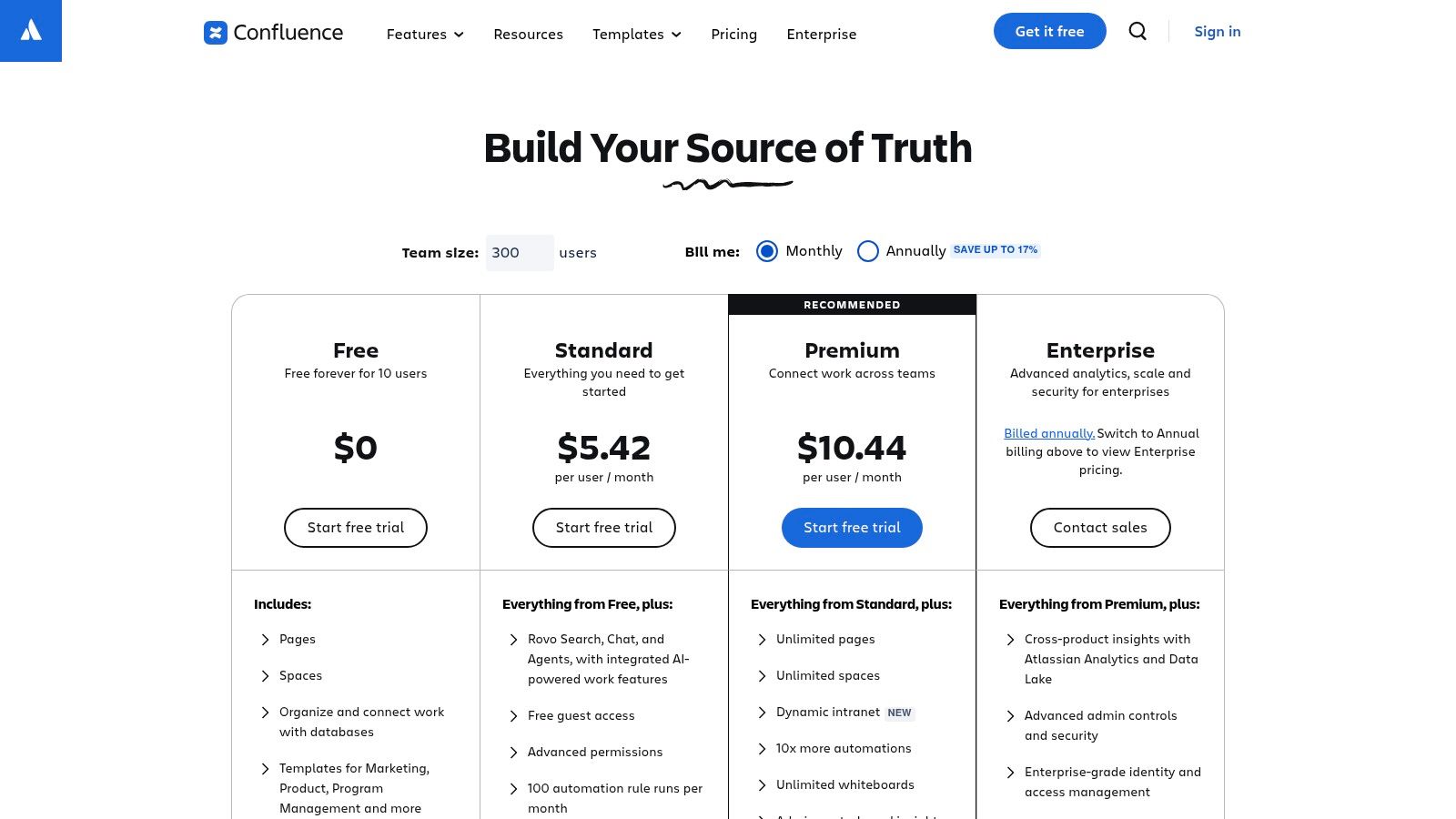
Confluence is rarely the first tool solo creators choose. It is often the tool larger teams adopt when they get tired of losing institutional knowledge.
That distinction matters. Confluence is less about beautiful free-form writing and more about durable documentation. If your team needs page hierarchies, labels, search, and a proper home for process docs, campaign plans, editorial standards, and research archives, it does the job well. It also offers free access for up to 10 users, with paid plans starting at $5 per user per month, and Atlassian reports more than 85,000 customers globally, as summarized in this competitor landscape reference.
Where Confluence earns its keep
Confluence is strong when your operation is bigger than a content calendar. Think publication playbooks, partner guidelines, style rules, launch retrospectives, and living documentation that multiple departments need to find later.
Its newer real-time editing features make it more viable as an active writing environment than older versions were. Still, its personality is “team wiki” first.
- Best use case: Multi-person organizations that need durable documentation and clear navigation.
- Big advantage: Strong structure for large, evolving content libraries.
- Main drawback: It can feel heavy for teams that just want fast drafting and lightweight review.
For publishers, media teams, and organizations with recurring contributors, that page-tree structure becomes a feature, not a burden. New people can orient themselves without asking where everything lives.
What it doesn’t do elegantly
Confluence isn’t the most relaxed writing environment on this list. If your writers want a minimalist creative space, they may push back. It’s better as an operational home than a pure writing sanctuary.
That said, I’ve seen teams waste more time hunting for “the right version” than writing the next piece. Confluence solves that kind of waste well. Explore it at Atlassian Confluence pricing.
5. ClickUp Docs
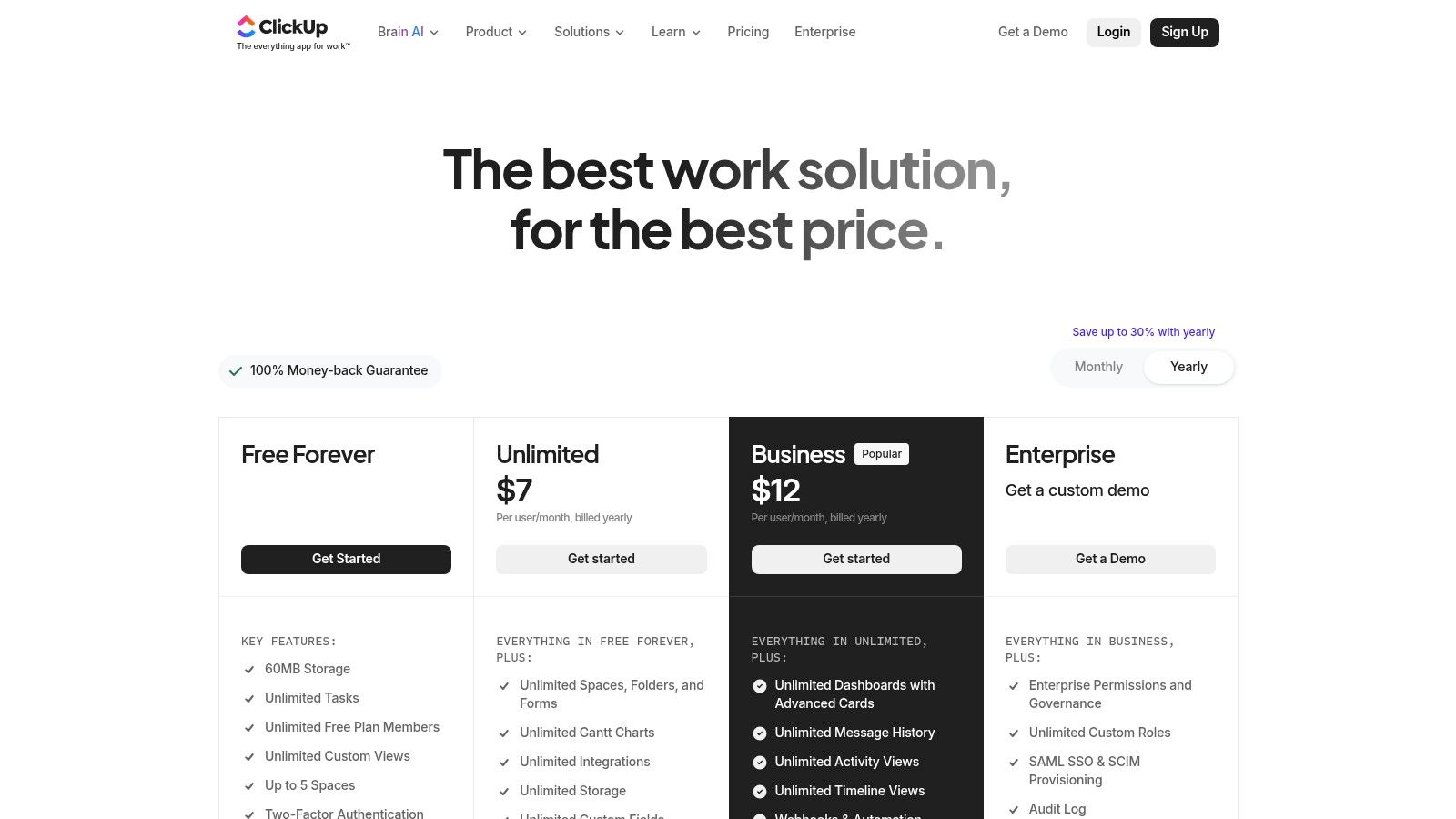
ClickUp Docs makes the most sense when your team already runs work in ClickUp. In that setup, docs stop being standalone files and start acting like part of the production system.
That sounds obvious, but it solves a real content ops problem. A script isn’t just a script. It’s tied to deadlines, approvals, owners, dependencies, and publication steps. If your editorial machine already lives in ClickUp, keeping docs there reduces handoff friction.
The appeal for busy content teams
ClickUp Docs can link directly to tasks, goals, dashboards, and other work objects. That connection is useful for marketing teams, agencies, and production groups where a document is only one part of execution.
The value is operational clarity, not writing elegance.
- Best use case: Teams that want briefs, outlines, and working docs attached to active project management.
- Big advantage: Fewer context switches between planning and production.
- Main drawback: If you only need docs, ClickUp can feel like buying a whole studio to record one voice note.
ClickUp also offers optional AI features in some plans. Those can help with summarizing and rough drafting, but the bigger differentiator is still workflow integration.
When to skip it
Skip ClickUp Docs if your team resists all-in-one platforms or if your writing process needs a calmer, more focused environment. Writers who dislike dense interfaces often prefer a simpler editor and a separate project tool.
But if your current pain is missed deadlines, invisible blockers, and documents that drift away from execution, ClickUp’s integrated model is compelling. You can review options at ClickUp pricing.
A lot of teams don’t have a writing problem. They have a handoff problem. ClickUp is built for the second one.
6. Zoho Writer
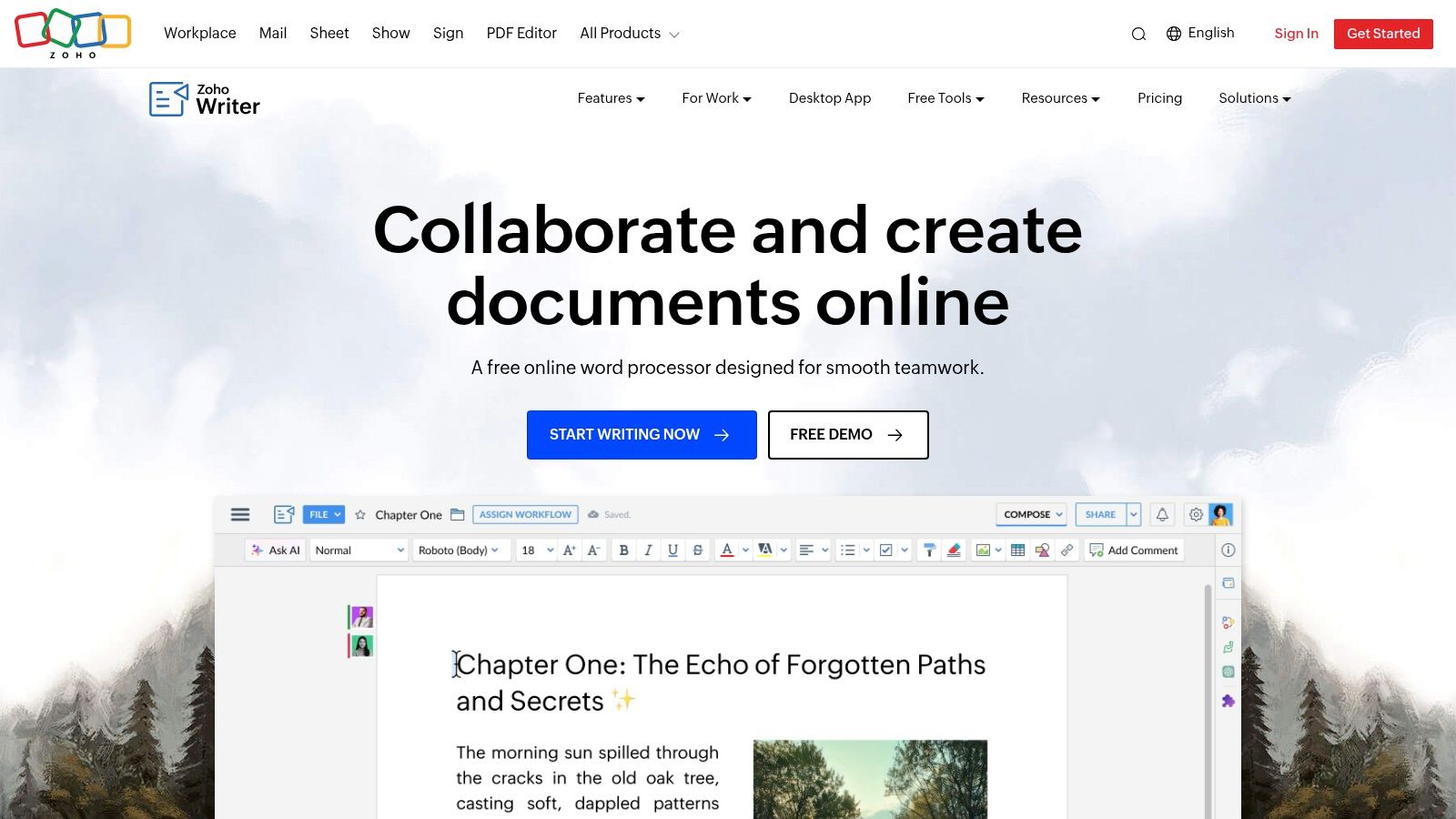
Zoho Writer is easy to underestimate. It doesn’t get the same creator-world attention as Notion or Coda, but it’s a capable web word processor with strong collaboration features and a practical business bent.
That business bent is either a plus or a minus, depending on what you’re building. If you need approvals, document automation, merge fields, forms, and connections to a larger suite of business apps, Zoho Writer becomes interesting fast. If you just want a blank page with comments, it may feel more formal than necessary.
Why some teams prefer it
Zoho Writer is a good fit for content organizations that overlap with client service, sales operations, or internal approvals. Agencies, education teams, and process-heavy marketing groups often want writing tools that can plug into wider workflows without enterprise pricing shock.
Its editor feels more like a serious word processor than a lightweight note app. That’s useful when polish matters.
- Best use case: Teams that need collaborative writing plus approvals and business workflow support.
- Big advantage: Mature editing features with broader process capabilities.
- Main drawback: The best experience often comes when you’re already using other Zoho products.
It’s also one of the better picks for teams that still care about exports and compatibility without committing to Microsoft everywhere.
Where it lands in a creator stack
Zoho Writer isn’t the trendy choice. It’s the practical one. I’d look at it if your content shop is growing into a real business operation with repeat approvals, formal review, and structured document outputs.
If your workflow is more freeform creative ideation, another tool may feel lighter. If your workflow now includes contracts, stakeholder review, standardized drafts, and process, Zoho Writer deserves a harder look than it usually gets.
You can start at Zoho Writer.
7. Dropbox Paper
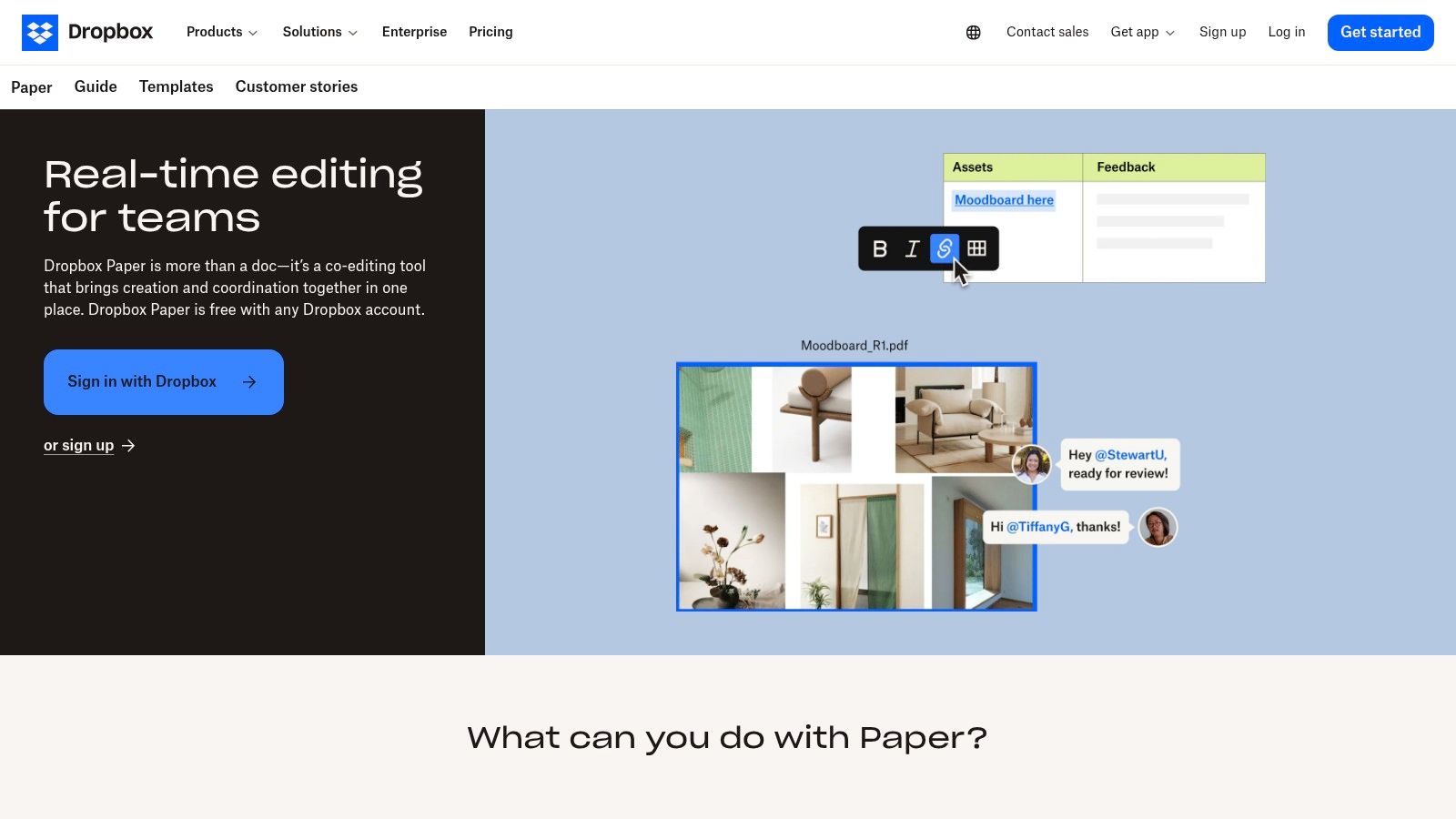
Dropbox Paper is the stripped-down option on this list. That’s the point.
For quick outlines, collaborative agendas, show notes, brainstorms, and rough creative work, Paper stays out of the way. It doesn’t try to become your entire operating system. It gives you a clean space to think with other people while staying close to your Dropbox files.
Why minimalism still wins sometimes
Paper is good for content teams that already use Dropbox for storage and don’t want another heavyweight platform. You can embed media, add tasks, mention collaborators, and sketch ideas without setting up databases, elaborate workspaces, or too many conventions.
That low friction matters in early-stage workflows.
- Best use case: Fast collaborative drafting and planning beside existing Dropbox folders.
- Big advantage: Very low mental overhead.
- Main drawback: It’s intentionally lightweight, so it won’t replace a serious documentation or publishing system.
A lot of content gets blocked by process, not by talent. In those moments, a simpler tool can be the better tool. Teams can move from idea to draft quickly without asking where every asset belongs in a giant workspace.
The ceiling is real
Paper’s simplicity becomes a limitation once your content library grows. Search, hierarchy, and deeper governance aren’t its strong suit. The native apps have also been discontinued, so the web experience matters more now.
Still, for meeting notes, interview prep, and rough collaborative drafting, it’s pleasant. If your current workflow is too heavy, Paper can feel like a relief. Use it at Dropbox Paper.
8. ONLYOFFICE DocSpace and ONLYOFFICE Docs
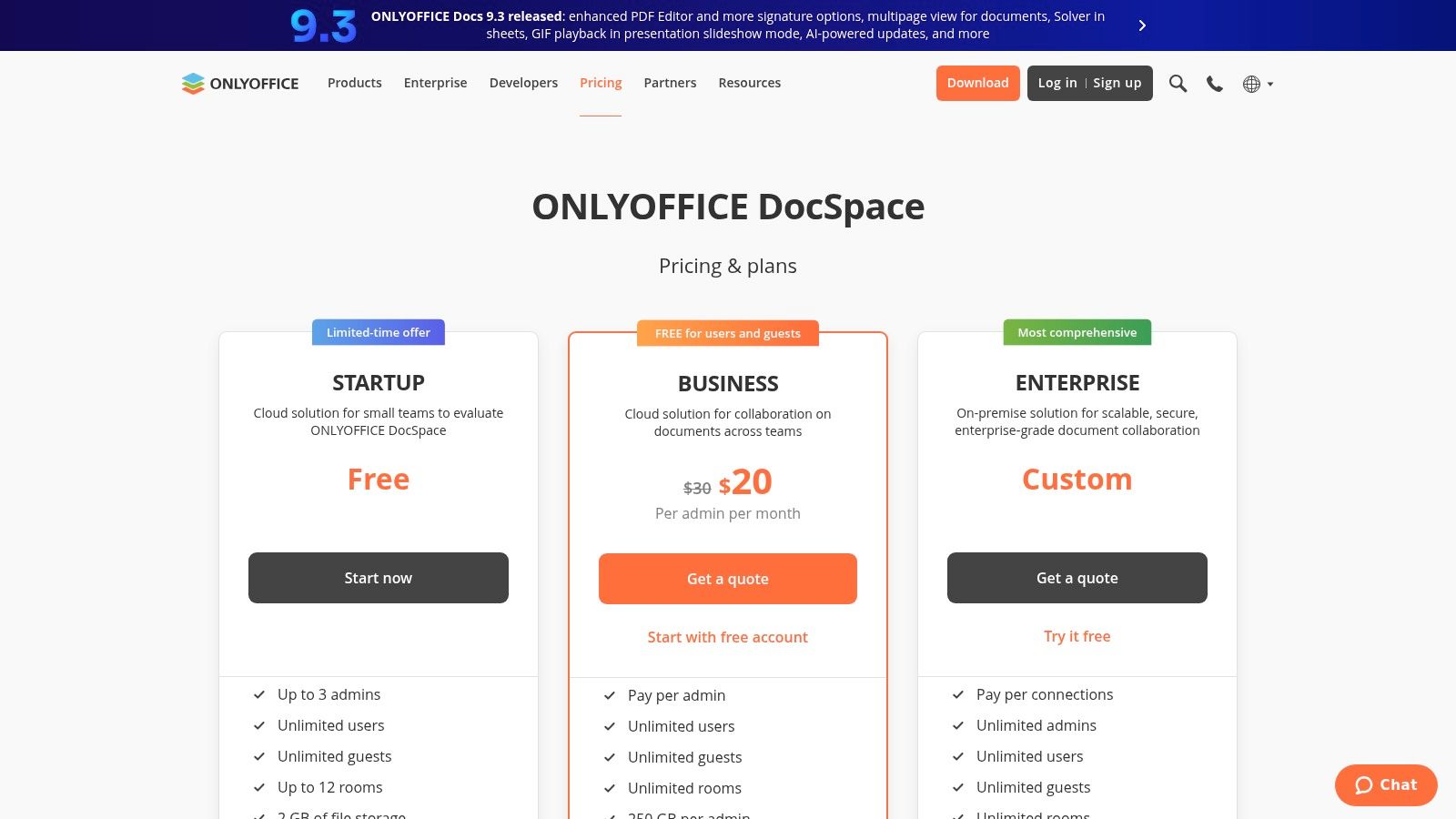
ONLYOFFICE belongs in any serious list of alternatives because it solves a problem many mainstream reviews skip. Some teams don’t just want a website like Google Docs. They want control over where the data lives.
That matters more when you’re handling sensitive research, unpublished manuscripts, regulated information, or a valuable archive you don’t want trapped in one vendor’s cloud. The gap in most comparisons is that they barely cover self-hosted options, even though a 2025 Stack Overflow survey cited in Cloudron’s discussion of open-source alternatives says 68% of developers prioritize self-hosted tools for data sovereignty.
Why creators should care about deployment
ONLYOFFICE gives you options. DocSpace covers hosted collaboration. ONLYOFFICE Docs can be self-hosted and integrated into other platforms. That flexibility is useful for media organizations, research groups, and content businesses with stronger privacy or infrastructure requirements.
It also has strong compatibility with Microsoft formats, which helps if your archive is full of Word documents.
- Best use case: Organizations that need Office-style editing with more deployment control.
- Big advantage: Cloud or self-hosted paths, plus good file compatibility.
- Main drawback: Setup and licensing are more involved than simple SaaS tools.
For creator teams moving from hobbyist to business, this may sound like overkill. For content organizations with a deep back catalog and real IP value, it’s not overkill at all.
The real trade-off
You trade simplicity for control. Google Docs wins on instant ease. ONLYOFFICE wins when ownership, deployment choice, and integration flexibility matter more than zero-setup convenience.
That’s a worthwhile trade for some teams, especially if the content library itself is becoming a business asset rather than just a storage problem. You can check plans at ONLYOFFICE DocSpace pricing.
9. CryptPad
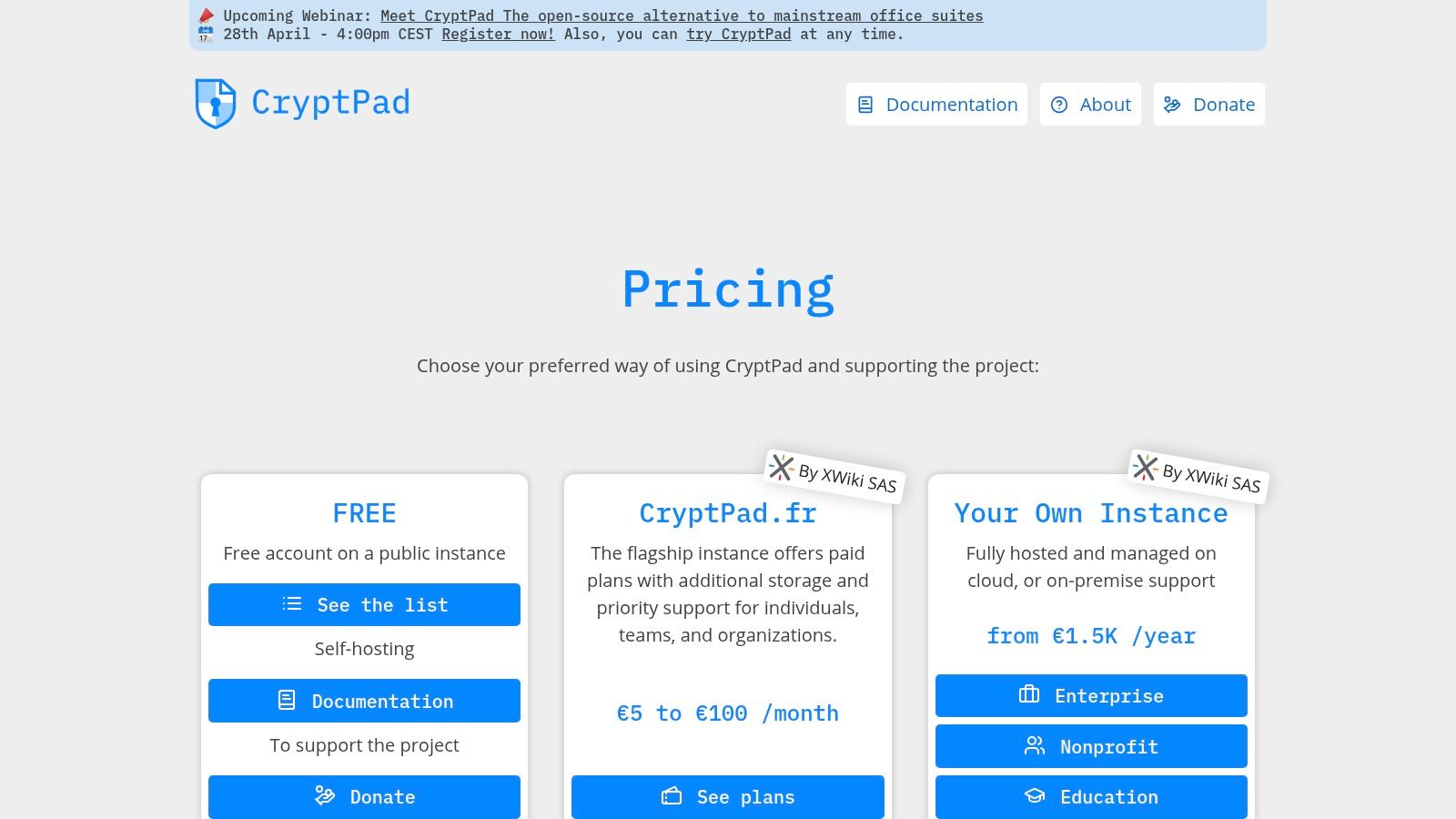
CryptPad is the privacy-first pick. If your team cares greatly about zero-knowledge collaboration and end-to-end encryption, it stands apart from the mainstream cloud editors.
That’s not a niche concern anymore. Privacy and compliance are becoming workflow decisions, not just legal fine print. Open-source alternatives like CryptPad and Etherpad offer end-to-end encryption that Google Docs doesn’t, according to this review of online academic and privacy-focused research tools.
When privacy changes the tool choice
CryptPad makes sense for sensitive editorial work, confidential research, early-stage investigative projects, and organizations that need stronger protection by design. It also includes more than rich text. You get sheets, kanban, whiteboards, and forms, which makes it more versatile than the name suggests.
That variety is useful when your team brainstorms and organizes in the same environment.
- Best use case: Sensitive collaboration where privacy is a hard requirement.
- Big advantage: Strong privacy model with real-time collaboration.
- Main drawback: You’ll give up some integration convenience and polish.
This is the kind of platform where your values shape your workflow. If convenience is the top priority, you may not choose it. If control and confidentiality are paramount, it becomes much more attractive.
What to expect in day-to-day use
CryptPad feels more utilitarian than tools built for mass adoption. That’s fine if your team values substance over slickness. Less fine if broad user adoption depends on a super-refined interface.
For certain creator teams, especially those handling sensitive materials or external collaborators in regulated contexts, that trade is worth making. Review it at CryptPad pricing.
If your documents contain information you’d hate to expose, privacy isn’t a bonus feature. It’s part of the product decision.
10. Box Notes
Box Notes is a smart choice when your organization already runs on Box. In that environment, the editor isn’t the star. The surrounding governance is.
That’s why Box Notes tends to land better in established organizations than solo creator stacks. If your files, permissions, retention rules, and external sharing already live in Box, Notes gives you collaborative writing without forcing people to jump into a separate document platform.
Why it works in governed environments
Box Notes supports real-time coauthoring, comments, mentions, versioning, and ties into Box’s broader security and admin controls. That’s useful when legal, operations, and content teams all need confidence that the document behavior matches the storage and governance behavior.
For media companies and publishers with multiple contributors, that consistency matters.
- Best use case: Box-centric teams that want lightweight collaborative docs with enterprise controls.
- Big advantage: Fits naturally into existing Box compliance and sharing workflows.
- Main drawback: It’s a lighter editor than Word, Google Docs, or Zoho Writer.
This is not the tool I’d pick for long-form drafting bliss. It is a tool I’d pick if the content organization already depends on Box and wants fewer disconnected systems.
Best for teams with existing infrastructure
Box Notes gets much better when it isn’t being asked to justify itself alone. Paired with Box storage, governance, and external collaboration, it becomes part of a coherent environment. Alone, it can feel too lightweight.
That’s an important distinction when choosing a website like Google Docs. Sometimes the editor with the best standalone features isn’t the best fit. Sometimes the winner is the one that causes the least operational friction in the stack you already have.
Take a look at Box Notes.
Top 10 Web-Based Document Editors Comparison
| Tool | Core features | Best for | Key strengths / USP | Collaboration & AI | Price & deployment |
|---|---|---|---|---|---|
| Microsoft Word for the web (Microsoft 365 for the web) | Browser-based .docx editor, version history via OneDrive/SharePoint | Teams needing Office fidelity and web access | Smoothest round-trip with Office files, familiar UI | Real-time coauthoring, comments, version history; limited advanced web features | Free with Microsoft account; cloud (OneDrive/SharePoint); paid 365 tiers add features |
| Notion | Block-based docs, databases, templates, wiki capabilities | Knowledge bases, editorial hubs, research workflows | Flexible schemas linking docs and editorial pipelines | Real-time collaboration, granular permissions; AI optional on paid plans | Tiered SaaS; cloud, guest sharing |
| Coda | Docs + powerful tables, buttons, automations, Packs integrations | Teams that drive structured workflows from docs | App-like reusable docs, rich integrations (Packs) | Real-time editing, built-in automations; advanced Packs may require higher tiers | Per-Doc-Maker billing model; cloud |
| Atlassian Confluence (Cloud) | Wiki pages, page trees, Live Docs, analytics, app marketplace | Large content libraries, enterprise documentation & review flows | Strong governance, Jira/Trello integrations, enterprise security | Live Docs real-time editing, labels/search, analytics & permissions | Tiered SaaS for teams/enterprise; cloud |
| ClickUp Docs | Docs embedded with tasks, goals, dashboards, whiteboards | Editorial teams wanting docs tied to production tasks | Eliminates tool-switching; tight docs-to-task linkage | Real-time docs, comments, optional AI add-ons; permissions & SSO available | Tiered SaaS; AI add-ons vary by plan; cloud |
| Zoho Writer | Web word processor, automation, fillable forms, Zia AI | Business workflows needing approvals and automation | Document automation, built-in Zia drafting & review tools | Coauthoring, track changes, Zia for drafting; some AI credits paid | Part of Zoho suite; competitive pricing; cloud |
| Dropbox Paper | Minimal collaborative editor, media embeds, checklists | Quick outlines, show notes, Dropbox-centric teams | Very low friction, strong Dropbox file integration | Real-time editing, comments, tasks; intentionally lightweight | Free with Dropbox accounts; cloud |
| ONLYOFFICE DocSpace / ONLYOFFICE Docs | Enterprise editors with .docx fidelity, forms, rooms, connectors | Orgs needing strong Office compatibility and deployment flexibility | Strong MS Office format fidelity, cloud or self-host options | Real-time coediting, track changes; enterprise SSO/connectors | Hosted DocSpace or self-hosted Docs; licensing varies |
| CryptPad | End-to-end encrypted rich text, sheets, kanban, whiteboard, forms | Privacy-sensitive teams, education, nonprofits, self-hosters | Zero-knowledge E2E encryption, multi-app suite | Real-time encrypted collaboration; limited third-party integrations | Free + paid plans; public instance or self-host |
| Box Notes | Lightweight editor integrated with Box storage, embeds, retention | Enterprises using Box for storage, compliance, e-sign workflows | Seamless Box governance, security, and file previews | Real-time coauthoring, versioning, comments; lighter editing feature set | Included with Box plans; cloud, enterprise features available |
The Right Editor for Your Creative Engine
A creator team usually notices the limit at the same point. The draft is done, but now someone needs the source notes, someone else needs last quarter’s approved version, a contractor needs access to one folder but not the whole archive, and the producer wants to reuse a quote in next week’s script. At that stage, the question is no longer whether a website like Google Docs can handle writing. The question is whether your editor can support a content operation that keeps growing.
Google Docs earned its place because it made collaborative drafting easy. For a solo creator or a small team, that may be enough for a while. As soon as content becomes a repeatable business process, the editor starts doing heavier work. It needs to support review cycles, protect useful context, keep assets findable, and help the team reuse material instead of recreating it.
That’s the lens that matters here.
Microsoft Word for the web fits teams that care most about file compatibility and formal editing workflows. Notion and Coda work better when writing sits inside a larger system for planning, briefs, production tracking, and content databases. Confluence is a better fit for teams that need documentation with clear ownership and long-term structure. ClickUp Docs makes more sense when the biggest problem is turning approved copy into assigned work and shipped deliverables.
The narrower options matter too, especially once teams stop shopping for general features and start choosing based on operational friction. Zoho Writer suits process-heavy environments. Dropbox Paper is useful for fast outlines, meeting notes, and low-overhead collaboration. ONLYOFFICE and CryptPad deserve serious attention when deployment control, privacy, or self-hosting matter more than mainstream integrations. Box Notes is a practical choice for organizations already running on Box governance and storage.
A few rules hold up across all ten tools.
- Drafting is only one job: The editor also needs to support review, approvals, retrieval, and reuse.
- Organization beats accumulation: A smaller system with naming rules, templates, and clear ownership works better than a huge archive of half-labeled files.
- Fit beats familiarity: The tool your team already knows is not always the one that will support scale.
- Old content should stay useful: Scripts, research, transcripts, show notes, and interview prep should be easy to find and repurpose later.
That last point affects revenue more than many teams expect. Content creation is expensive, even when the costs are hidden inside salaries, freelance invoices, and production time. If published material disappears into scattered folders and weak search, the team keeps paying to remake assets it already owns.
I’d choose an editor the same way I’d choose any production system. Test how fast a new teammate can get oriented. Test whether an editor can preserve comments that still matter three months later. Test whether your team can find a past draft, extract a quote, reuse a research block, and hand off work without a long Slack thread to explain the context.
That is what separates a pleasant writing tool from a reliable creative engine.
If your process also involves visual production, campaign assets, and creative reviews outside text alone, these design collaboration tools are worth pairing with the document platform you choose.
The best option here will not fix a messy operation by itself. It will make strong habits easier to maintain, and that matters a lot once content shifts from a hobby or side project into a business with deadlines, contributors, and a growing library of assets.
If your team is ready to do more than draft documents, Contesimal helps you organize, search, classify, and activate your content library so old episodes, articles, research, and scripts can generate new value. It’s a strong next step for creators and publishers who want their archive to become a working asset, not a forgotten folder.