
Figuring out how to cite a PDF can feel like a small, nagging headache, especially when you're deep in creator mode. The secret? Cite the original source—the journal article, report, or book—not the PDF file itself. Think of the PDF as just the container. Your real job is to point your audience to the source, ideally with a stable link like a DOI or URL, so they can see the groundwork you've laid.
Why Citing PDFs Correctly Builds Trust
It’s a familiar moment for any creator. You're staring at a PDF packed with great info for your next video essay, deep-dive blog post, or white paper. These files are where the best research lives, from groundbreaking academic studies to critical industry data. As you move from hobbyist to professional, mastering this part of your workflow is non-negotiable.
But getting the citation right is about more than just dodging plagiarism accusations. It's one of the clearest ways to build authority and earn your audience’s trust.
Show Your Work and Build Authority
Remember showing your work in math class? Proper citation is the creator’s version of that. When you back up your claims with clear, accurate sources, you’re proving your content is built on a solid foundation.
This simple act transforms you from just another voice online into a trusted expert in your field. It’s a small detail that makes a huge difference, especially when you're looking to generate more audience engagement across platforms.
And it's more critical than ever. PDFs now make up over 70% of all scholarly documents shared online. Your ability to navigate and credit these sources properly puts you ahead of the pack.
For creators looking to monetize their work, that trust is everything. An audience that trusts your research is far more likely to subscribe, engage, and support you in the long run.
Essential Information for Any PDF Citation
Before you even think about formatting, you need to play detective and gather a few key pieces of information from your content library. It doesn’t matter if you're using APA, MLA, or Chicago style—they all need the same core details to build a proper citation.
Here’s a quick rundown of what you’ll need to track down.
Essential Information for Any PDF Citation
| Information to Find | Where to Look | Why It's Important |
|---|---|---|
| Author(s) | Usually on the first page, header, or footer. Can be a person or an organization. | Credits the original creator of the work. |
| Publication Date | Typically near the title or in the document's header/footer. Look for a copyright year. | Puts the information in context and shows how current it is. |
| Title of the Work | Almost always at the top of the first page in large, bold text. | Clearly identifies the specific document you are referencing. |
| Source Information | The journal name, website, or publisher. Check the page header/footer or cover page. | Tells the reader where the work was published (e.g., The New England Journal of Medicine). |
| DOI or URL | Look for a "doi.org" link or a stable URL on the first page or in the footer. | Provides a direct, permanent link for your audience to find the exact source. |
Getting these details right is the first and most important step. Of course, knowing what information to look for also means knowing how to spot a reliable source in the first place. If you're unsure, it's worth brushing up on what is a credible source.
Citing PDFs The Right Way In APA Style
If you're a content marketer, researcher, or creator in the social sciences, you know that APA style is the gold standard for showing your work. Getting it right builds instant credibility. It all comes down to following the guidelines from the American Psychological Association, currently in its 7th edition.
Here’s the biggest mental shift you need to make: you're not actually citing the PDF file. You’re citing the content inside it, whether that’s a journal article, a government report, or a white paper.
Let's skip the theory and get straight to how this plays out in the real world. We'll break down the exact format for your reference list and the in-text citations you'll sprinkle throughout your work.
How To Format Your APA Reference List
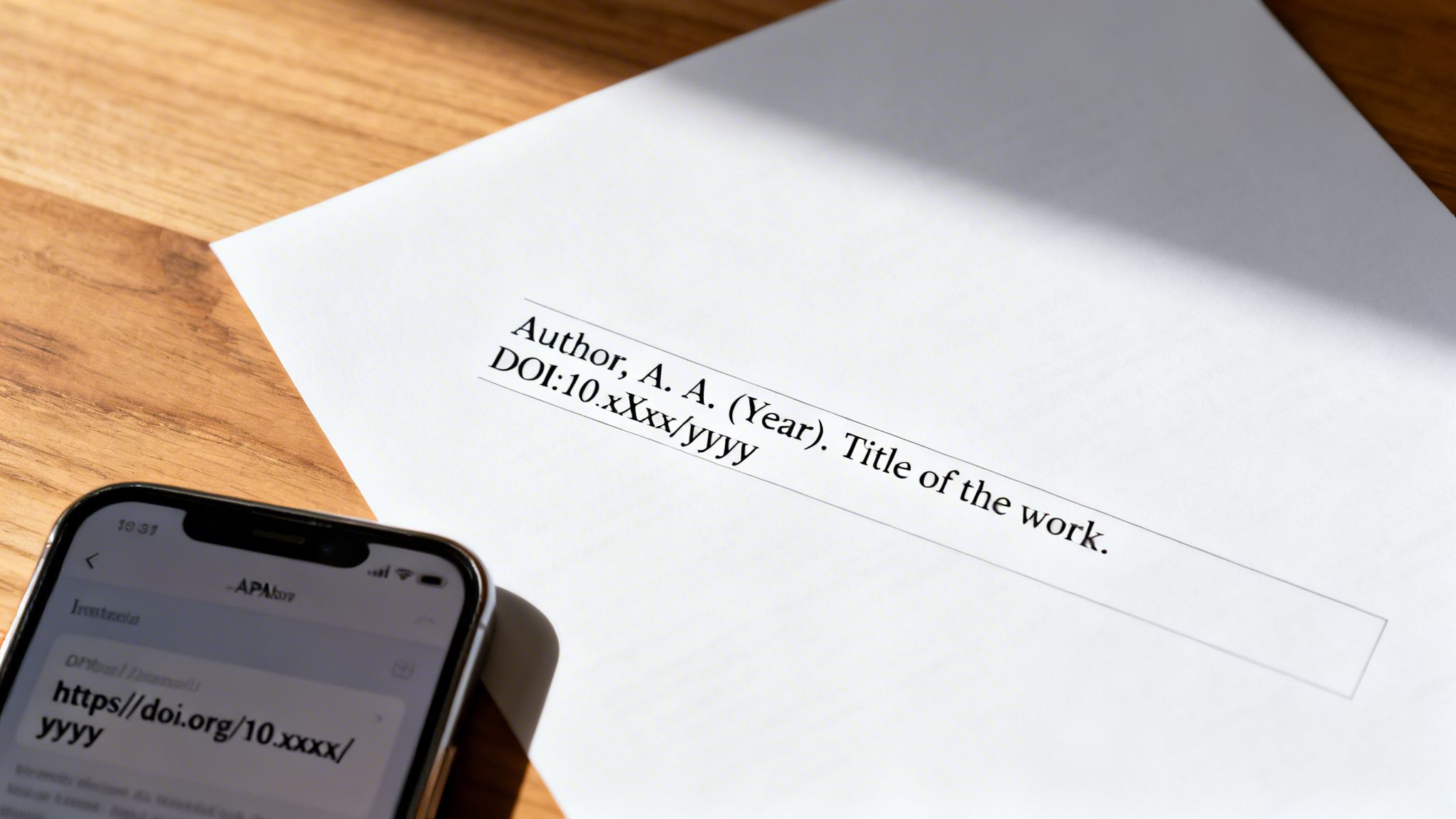
Your reference list is the roadmap your readers use to find your sources. For a PDF you found online, the basic formula is always: Author, Date, Title, and Source. Simple enough, right?
The main point of confusion usually pops up with the source link. Luckily, APA has a clear hierarchy that makes it easy.
- Always use a DOI link if one exists. A Digital Object Identifier (DOI) is a permanent link that won’t break, even if the website moves the content. It's the most reliable way to link your source.
- Use a direct URL if there’s no DOI. If you can't track down a DOI, a plain old URL to the PDF is the next best thing.
Let's see what this looks like when you're citing a common type of PDF.
One of the best changes in APA 7th Edition is that you no longer need to write "Retrieved from" before a URL. Just drop the full DOI or URL at the end of the citation. It makes the entire list cleaner and much easier to read.
APA Citation Examples in Action
Imagine you're creating a video and you pull a key statistic from a government report saved as a PDF. You've got all the pieces: the author is an organization (the Environmental Protection Agency), it was published in 2026, and the title is "Annual Air Quality Trends."
Here's how you’d build the reference list entry:
- Reference List Entry:
Environmental Protection Agency. (2026). Annual air quality trends. https://www.epa.gov/reports/air-quality-trends-2026.pdf
Now, when you drop that statistic into your script, your in-text citation is short and sweet. All you need is the author and the year.
- In-Text Citation (Parenthetical):
(Environmental Protection Agency, 2026) - In-Text Citation (Narrative):
According to the Environmental Protection Agency (2026)…
This simple two-part system—a quick tag in your text and a full entry at the end—keeps your content organized and trustworthy. Getting your APA citations right for PDFs isn't just about following rules; it's about showing your audience you've done your homework.
Getting a Handle on MLA Citations for PDFs
If you’re creating content in the humanities, whether you’re a blogger, author, or filmmaker, the Modern Language Association (MLA) style is your go-to. It’s built for flexibility, which is exactly what you need when you're pulling from all sorts of sources.
That flexibility is a big reason why 42% of humanities scholars prefer it, making it a skill you really need to have down. You can dig into the data on citation style preferences from MSU Libraries yourself.
Unlike some other styles that have a specific rule for every single source type, the MLA 9th Edition gives us a universal "container" system. This approach totally simplifies how you cite a PDF. Your job is just to find the core pieces of information and slot them into the right container.
The MLA Container System: What You Need to Know
The easiest way to think about this is like a set of nesting dolls. The smallest doll on the inside is the work itself—say, an article or a chapter. The bigger doll it sits in is where you found it, like an e-book, a website, or an academic journal.
Container 1: This is the immediate source. If you're citing a chapter from an e-book you saved as a PDF, that e-book is your first container.
Container 2: This is the bigger source holding Container 1. If that e-book is hosted on a platform like JSTOR or your university’s library database, the platform becomes the second container.
Honestly, most of the PDFs you cite will probably only need one container. But once you get the logic, you can tackle just about any source you come across as you repurpose your content.
MLA Works Cited and In-Text Citation Examples
Let's walk through a real-world scenario. Imagine you're a YouTuber working on a video essay and you find a brilliant report from a nonprofit's website, which you downloaded as a PDF.
Here’s the info you've gathered: The author is a group, "The Storytelling Project," the report is titled "Digital Narratives in 2026," the website is also called "The Storytelling Project," and it was published in 2026.
Here’s how you’d build the citation for your Works Cited page:
- Works Cited Entry:
"Digital Narratives in 2026." The Storytelling Project, The Storytelling Project, 2026, www.thestorytellingproject.org/reports/digital-narratives-2026.pdf.
See how the website acts as the "container" for the report? Simple.
For your in-text citation, you just grab the first element from the Works Cited entry (in this case, the title, since there's no single author) and a page number if you have one.
- In-Text Citation:
("Digital Narratives" 14)
A common point of confusion is when to tack on an access date. MLA 9th Edition only suggests adding one if the source is likely to change or doesn't have a publication date. For a static PDF with a clear publication year, you can almost always leave it out.
Getting comfortable with MLA's container system lets you cite any PDF with confidence. It adds a layer of professionalism that helps you build trust with your audience and really level up your content.
Solving Tricky PDF Citation Problems
Sooner or later, every creator hits this wall. You’ve found the absolute perfect PDF source for your next viral hit, but it’s missing something critical—like an author, a date, or even page numbers. It’s frustrating, but it’s not a dealbreaker.
Knowing how to handle a PDF with missing info is a pro move. It shows you can work with imperfect sources without trashing your credibility. While these situations are annoying, every major citation style has a simple, logical fix.
When the Author Is an Organization or Is Missing
What happens when there's no single person to credit? You see this all the time with reports from companies, government agencies, and non-profits.
Organization as Author: If an organization published the PDF, that organization just becomes the author. For instance, in APA, a report from the World Health Organization would simply start with "World Health Organization. (2026)…" Easy.
No Author at All: If you’ve looked everywhere and there’s genuinely no author or organization listed, the citation just starts with the title of the work. The title slides right into the author's spot. Your in-text citation will then use a shortened version of that title.
Dealing With No Publication Date
Here’s another classic problem: a PDF with no clear publication date. Web-based reports and white papers are notorious for this. The fix is refreshingly simple.
Use the abbreviation "n.d." which stands for "no date." This tells your reader that you did your due diligence, but the document itself didn't provide a date.
An APA in-text citation, for example, would just look like this: (Global Marketing Institute, n.d.). This signals to your audience that the information's timeliness couldn't be confirmed, which is an important bit of context for them to have.
Navigating PDFs Without Page Numbers
The lack of page numbers is especially common in PDFs that were clearly designed for web viewing, not printing. So how do you point your reader to a specific quote?
This is where you have to get a little creative and reference another kind of locator:
- Paragraph Number: Just count the paragraphs and use that number (e.g., para. 4).
- Section Heading: Use the heading of the section where you found the info (e.g., "Methodology" section).
- Chapter or Figure Number: If the document has numbered chapters or figures, lean on those.
For example, an MLA in-text citation might read (Smith, "Results" section). This kind of precision is also a lifesaver when you're doing your own detailed work, like note-taking on a PDF to build out a bigger argument. It helps you find your own way back to the key data without endless scrolling.
These quick troubleshooting steps turn citation headaches into totally manageable tasks. Instead of ditching a great source, you can confidently slot it into your work while keeping everything accurate and trustworthy.
Streamline Your Citations with Smart Tools
Let's be honest, you'd rather spend your time creating incredible content, not getting lost in the weeds of citation formatting. As a creator, your time is your most valuable asset. Manually tracking every source for a big project is a fast track to burnout and silly mistakes.
The good news? You can bring smart tools into your workflow that make citing PDFs almost effortless. Think of it as hiring a personal research assistant who handles all the tedious stuff for you, letting you and your team collaborate seamlessly.
Why You Should Use a Citation Manager
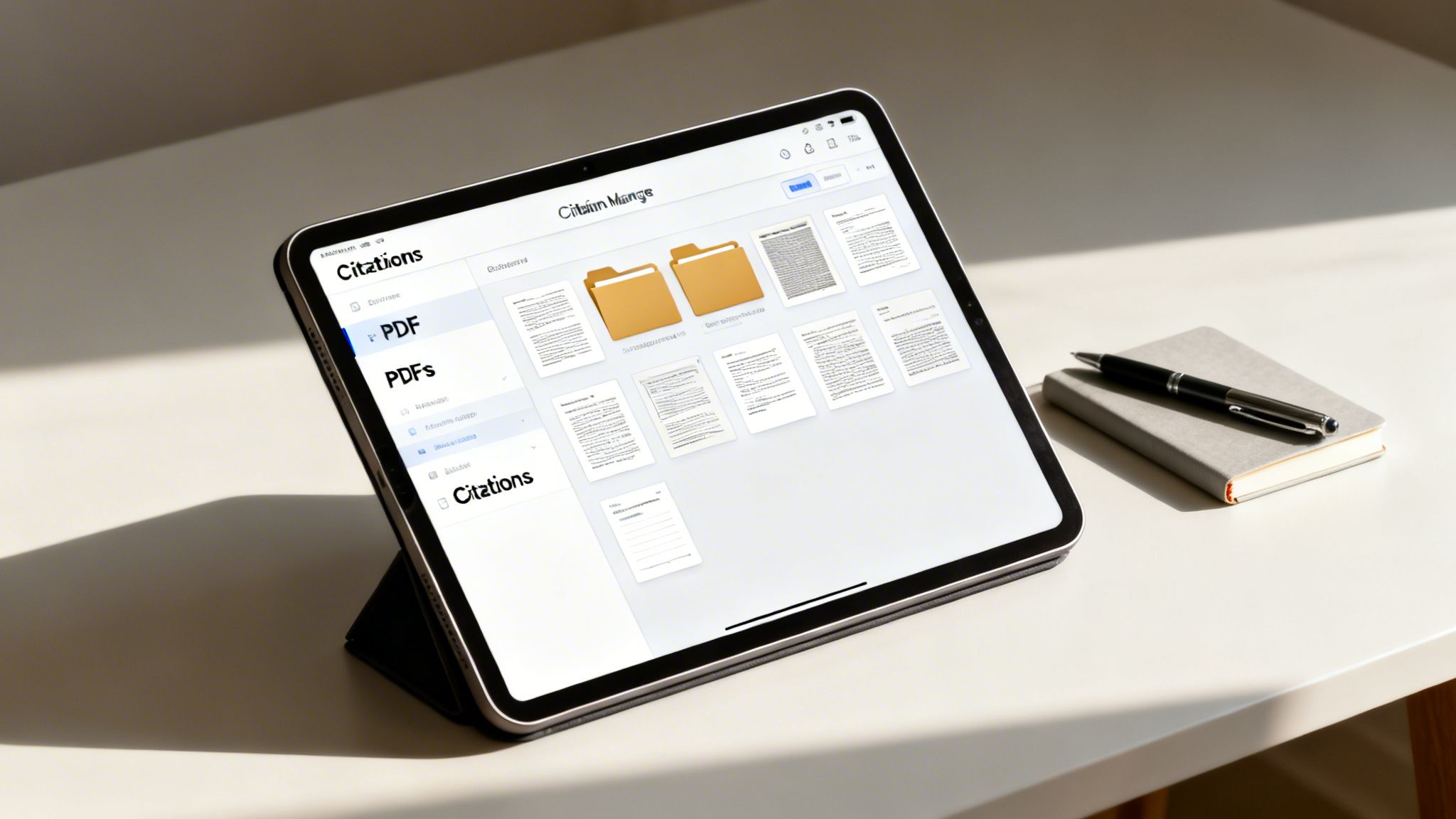
For any serious creator—especially podcasters, YouTubers, or authors building up a library of research—these tools are a total game-changer. That messy folder of PDFs with cryptic filenames? It becomes a searchable, organized database—a true content library you can generate value from.
These tools are your new best friend, helping you:
- Grab sources instantly with browser extensions that pull all the important info from web pages and PDFs.
- Organize your entire research library with tags, folders, and notes so you can actually find things later.
- Create bibliographies in APA, MLA, Chicago, and hundreds of other styles with just a click.
- Stop making mistakes by making sure every single citation is consistent and correctly formatted.
The real win here is turning a boring, error-prone task into something that just happens in the background. This frees up your brainpower to focus on what actually matters—analyzing your research and telling a great story for your audience.
Top Tools for Content Creators
A few tools really stand out for managing research and citations, and you've probably heard of them.
Zotero and Mendeley are two of the most popular free citation managers out there. They act like a digital library for your PDFs, letting you highlight text, add your own notes, and build citations as you go. They’re perfect for individual creators or small teams trying to get their research organized.
If you’re looking to take your workflow even further, an AI writing assistant can also help with different parts of the research and citation process.
Platforms like Contesimal build on this idea, helping your entire team collaborate around your content library. It’s designed for creators who want to organize their research and find new value in it. You can see more on finding the right solutions by checking out our guide to AI tools for literature review.
Common Questions About Citing PDFs
You’ve got the basics down, but then you hit a weird scenario. A PDF from an email, one locked behind a paywall, or you’re just not sure if you should mention the file type. Suddenly, the rules don’t seem so clear.
Let's walk through some of the tricky situations that pop up all the time. Here are the answers I’ve learned from years of juggling sources, so you can handle any PDF citation with confidence.
Do I Need to Write 'PDF' in My Citation?
Nope, you can almost always skip it.
Modern citation styles like APA 7 and MLA 9 care about the type of work—is it a journal article, a book, a government report?—not the file format you found it in. Your job is to point your reader to the original source with a stable link, like a DOI or a direct URL.
Think of it this way: you’re citing the content, not the container. While a few older or highly specific style guides might ask for it, if you're using one of the major styles, leave "PDF" out of the citation.
What if a PDF Is Behind a Paywall?
You still need to cite it just like any other source.
If there's a Digital Object Identifier (DOI), use it. A DOI is a permanent link that points to the source’s home base online, even if accessing the full text requires a subscription or a one-time payment. If you can’t find a DOI, just use the URL from your browser's address bar.
Your primary responsibility as a creator is to give credit and accurately identify the source. Even if a reader needs a subscription to access it, your citation has done its job by providing the correct path to the information.
How Do I Cite a PDF I Got in an Email?
This one’s a classic. If you have a source that isn’t publicly available—like a PDF someone emailed you or one you downloaded from a private university course page—you should treat it as "personal communication."
The logic is simple: your audience can't look it up themselves. Here’s how the major styles handle it:
- For APA: You only cite it within your text. For example: (J. Doe, personal communication, October 15, 2026). It does not go in your reference list at the end.
- For MLA: You should describe the source as clearly as possible in your Works Cited list and make a note about how you received it. This signals to your reader that it isn't a publicly accessible document.
To keep all these different sources straight, it’s worth looking into how to use AI-powered studying tools. These platforms are great for organizing both your public and private documents, which can make the entire research process a whole lot smoother.
Managing a huge library of PDFs and other source material is a real challenge for creators. Contesimal helps you organize, search, and collaborate across all your research, turning your content archive into a valuable, money-making asset. Discover how you can unlock new value from your existing work at https://contesimal.ai.