
You're probably here because a FaceTime call is no longer “just a call.”
It might be a guest interview for a podcast, a remote pre-interview before a filmed episode, a founder conversation you want to quote later, or a personal story that deserves to live beyond the moment. For creators, publishers, and marketers, the decision to screen record FaceTime is less about archiving and more about asset creation.
That shift matters. A recorded call can become a clipped reel, a transcript-backed article, a quote carousel, a research source, or a future episode reference. But only if you capture it properly, get permission, and avoid the common traps that leave you with silent video, messy desktops, or unusable audio.
Before You Hit Record A Guide to Recording Ethics
Recording a FaceTime call starts before you touch Control Center or QuickTime. It starts with consent.
Professionals treat consent as part of production, not as legal fine print. If you record first and explain later, you're taking a risk with trust, reputation, and the future usability of the material. Even when your intent is harmless, the other person may not expect the call to become reusable content.

Make consent part of your workflow
The cleanest approach is simple. Ask clearly, get a clear yes, and save that proof somewhere you can find later.
A practical creator workflow looks like this:
- Ask before the call starts: Send a message or email saying you'd like to record for note-taking, editing, or future content use.
- Confirm again on the call: Get a verbal yes once everyone is present.
- Document it: Save the message thread, calendar note, or release form in the same folder as the recording.
- Clarify use: Say whether the recording is for reference only, internal review, or public publishing.
Practical rule: If you'd hesitate to play back the consent conversation later, your permission process probably wasn't clear enough.
Many creators also blur the line between research and publishing. If you're gathering an interview that may later support a written piece, it helps to understand when an interview functions as source material. This guide on whether an interview is a primary source is useful if your recording may feed articles, reports, or editorial work.
Ethics protect the asset
A recording made without clarity is a weak asset. You may have the file, but you won't have confidence using it.
That's why I recommend a boring, repeatable script. “I'd like to record this FaceTime for editing and reference. Are you okay with that?” That one sentence saves a lot of future cleanup.
If you want a practical outside perspective, Smooth Capture's advice on call recording is a solid companion read because it frames recording around consent and expectations rather than just button clicks.
The more valuable the conversation is, the more important it is to handle permission like a producer, not a hobbyist.
How to Screen Record FaceTime on iPhone and iPad
If you want the fastest built-in method, iPhone and iPad can do the job without extra software. The catch is audio. Most failed attempts happen because the recording starts before Microphone Audio is turned on.
Place the setup before the call, not during it. You don't want to be fumbling through Control Center while your guest is already talking.
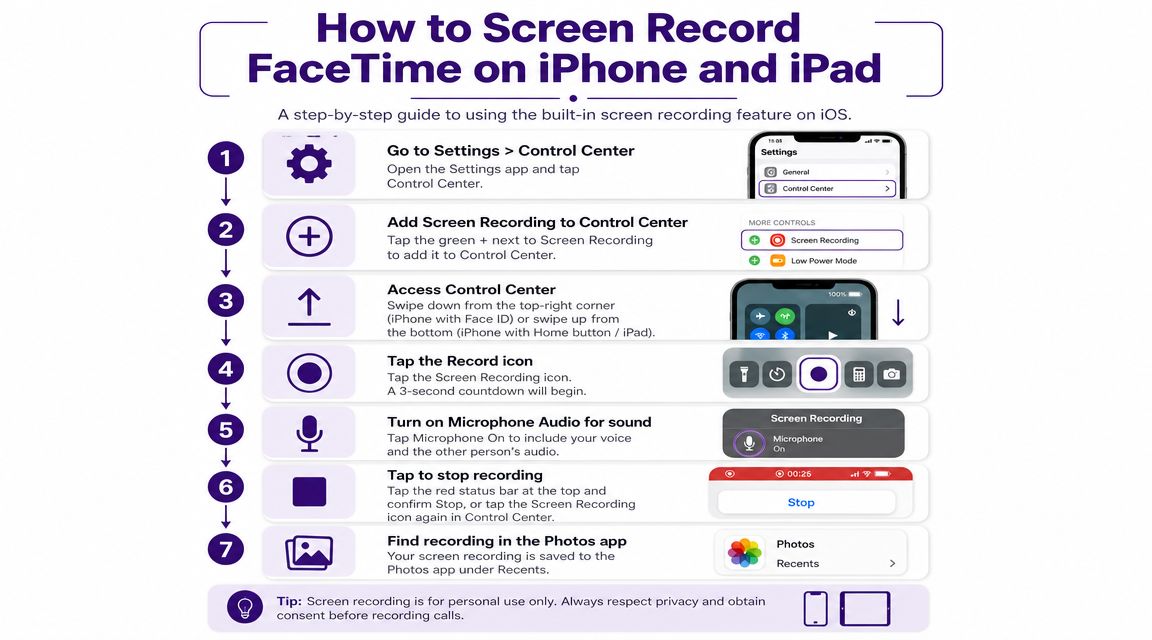
Set up Screen Recording first
On iPhone or iPad, the reliable built-in workflow is to add Screen Recording to Control Center, open Control Center, press and hold the record button, turn Microphone Audio on, then start FaceTime. The recording saves to Photos when you stop it, and if you leave the microphone off, you can end up with video that has no usable call audio, so the microphone needs to be enabled before the countdown finishes, as described by Nearity's FaceTime audio recording guide.
Here's the clean sequence I'd use for a creator workflow:
- Open Settings and find Control Center
- Add Screen Recording so the button is available when you swipe into Control Center
- Press and hold the Screen Recording button
- Turn on Microphone Audio
- Wait for the built-in three-second countdown
- Start or return to your FaceTime call
- Stop recording when the call ends
- Open Photos and review the file immediately
A short visual walkthrough helps if you're setting this up for the first time:
Avoid the mobile mistakes that ruin the take
iPhone and iPad are convenient, but they're less forgiving than a Mac.
Watch for these issues:
- Microphone left off: This is the classic failure. You get a perfectly good screen capture and unusable sound.
- Notifications popping in: Turn on a Focus mode before you record if you don't want banners and alerts baked into the file.
- Late starts: Start recording before the meaningful part of the conversation begins. Trimming extra setup is easy. Recovering missed context isn't.
- Storage surprises: Check free space if the call matters.
On mobile, success usually comes from preparation, not recovery.
There's also a practical hardware angle. If you're using an older device for creator work, performance and battery condition can shape how reliable long recordings feel. If you're weighing an upgrade path without buying new, this guide to the best refurbished iPhones is worth reviewing.
When mobile is the right choice
Use iPhone or iPad when speed matters more than production flexibility. It's excellent for quick interviews, reaction clips, family archives, and lightweight creator workflows where getting the conversation captured is more important than perfect post-production control.
If the recording is central to a podcast, documentary, or polished video release, Mac gives you more room to work cleanly.
Recording FaceTime Calls on Your Mac for More Control
Mac is where FaceTime recording starts to feel like an actual production workflow. You get more control over framing, more control over what's visible, and a better chance of leaving the session with something you can edit.
Apple gives you two native paths. Both are useful. They just serve slightly different personalities.
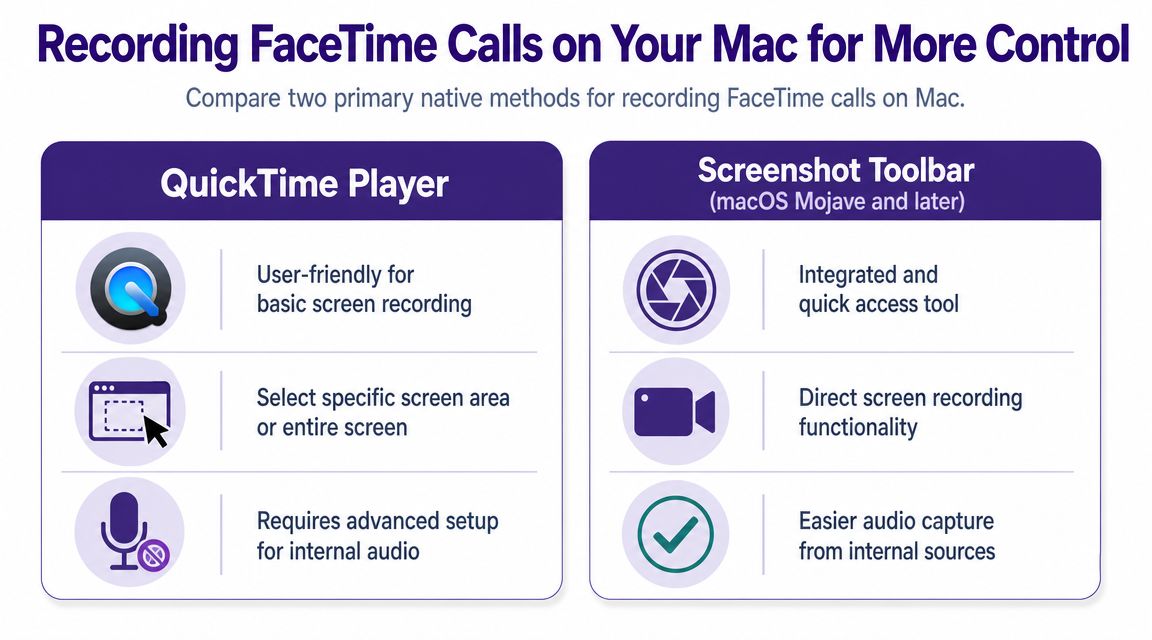
The two built-in Mac methods
Apple's native recording options on Mac are straightforward. You can open the screenshot and recording toolbar with Command + Shift + 5, or use QuickTime Player > File > New Screen Recording. Those are the two built-in paths Apple users rely on for FaceTime capture without third-party software, as outlined in the Apple Community discussion on recording FaceTime.
Here's the comparison that matters in practice:
| Method | Best for | Why creators use it |
|---|---|---|
| Command + Shift + 5 | Fast capture | Quick access, less app switching |
| QuickTime Player | Familiar workflow | Good if you like a dedicated app window and save flow |
Choose your frame carefully
The biggest upgrade on Mac is that you can record the entire screen or a selected portion. That matters because you don't need to expose your whole desktop just to capture one FaceTime window.
I strongly prefer selected-portion capture for anything client-facing or guest-facing. It keeps Slack messages, browser tabs, and random desktop clutter out of frame. It also makes the recording feel intentional instead of accidental.
Use this checklist before you hit record:
- Position the FaceTime window first: Don't resize mid-call if you can avoid it.
- Choose selected portion when privacy matters: It's cleaner and safer.
- Hide unrelated apps: Even if you aren't recording the full screen, visual distractions pull your focus.
- Test the save location: Don't finish a great interview and then wonder where the file went.
A selected frame does more than protect privacy. It reduces editing friction later.
Which one should you use
If you want speed, use Command + Shift + 5. It's built into the flow of working on a Mac, and it gets out of the way.
If you want a slightly more deliberate recording ritual, use QuickTime Player. Some creators prefer it because launching a dedicated app feels more like entering production mode. That small psychological difference matters when you're juggling guests, notes, and follow-up questions.
Neither option is a secret FaceTime feature. Both are operating-system tools. That's the important mindset shift. You aren't looking for a FaceTime record button. You're using macOS recording tools to capture a FaceTime session cleanly.
Solving the Biggest Problem Audio Capture
Video is usually easy. Audio is where FaceTime recording gets messy.
A call recording with weak sound, missing guest audio, or room echo isn't a content asset. It's a reference file at best. That's why serious creators obsess over audio routing long before they obsess over graphics, thumbnails, or clip selection.

What Apple's native tools do well
On Mac, the standard built-in method is to use QuickTime Player or Command + Shift + 5, then choose Internal Microphone from the Options menu. That's the normal first step for getting your voice into the recording, as noted in this guide to recording FaceTime with audio on Mac.
That setup is fine for:
- Reference recordings where you mainly need your side clearly documented
- Casual content capture where perfect mix quality isn't the goal
- Fast internal interviews that will be summarized rather than published in raw form
But there's a real limitation. Apple's native tools don't natively capture both sides of a FaceTime call in all setups. That's the point where creators start asking why their recording sounds incomplete.
Why creators move beyond the default setup
Native screen recording is convenient, but convenience and control aren't the same thing.
If you need cleaner production sound, the usual path is a Mac-based workflow with a better microphone for your voice and some form of audio routing for the call audio. Tools like Loopback or BlackHole often come up in creator circles because they help route sound more intentionally. The trade-off is complexity. Setup takes patience, and you need to test before the actual conversation.
Here's the practical breakdown:
| Approach | Upside | Trade-off |
|---|---|---|
| Internal Microphone only | Fast, built in | Inconsistent for full conversation capture |
| External mic for your voice | Better voice quality | Doesn't solve every incoming-audio issue by itself |
| Audio routing tools on Mac | More control over both sides | More setup, more places to make mistakes |
| Speaker playback as fallback | Easy in a pinch | Echo, room noise, weaker quality |
If the recording needs to become a podcast, don't trust an untested default audio path.
A better standard for repurposable recordings
Think in terms of editability. Can you clean the file, isolate useful quotes, and publish with confidence?
If the answer is no, the recording isn't finished when the call ends. It's barely captured. That's why podcasters and longform interview creators should treat audio capture as its own workflow, not as a side setting. If you're building spoken-word content regularly, this roundup of podcast editing software options is a useful next step once the file leaves FaceTime.
My rule is simple. Use the built-in workflow for convenience. Use a more deliberate audio setup when the conversation has publishing value.
Troubleshooting Common FaceTime Recording Issues
Most FaceTime recording failures aren't mysterious. They come from a short list of repeat problems.
No audio in the final file
If your recording is silent or mostly silent, check these in order:
- Microphone status on iPhone or iPad: If you didn't turn on Microphone Audio before the countdown finished, the file may not have usable sound.
- Mac recording options: Make sure you selected the intended microphone before recording.
- Environment: If you relied on speaker playback, room noise and echo may have overwhelmed the conversation.
Review the file immediately after a short test recording. Don't wait until after the full interview.
You recorded too much of your screen
This happens constantly on Mac. You meant to capture FaceTime and ended up capturing email, tabs, and desktop clutter too.
The fix is simple. Use a selected portion instead of the whole display when privacy matters. It keeps the call framed and cuts down on cleanup later.
Notifications ruined the recording
A good conversation can be interrupted visually even if the audio is fine.
Use a Focus mode before the call starts. That's especially important if you plan to turn the recording into public content. Notifications can reveal private names, message previews, or unrelated work.
Test like a producer, not like a hopeful user. Run a short recording, stop it, and inspect the actual file.
You're confusing screen recording with Apple's call recording
These are not the same thing.
Apple now supports Call Recording for one-to-one FaceTime audio calls in some regions and languages, and Apple says the recording is saved in Notes while both participants hear a notice. Availability depends on region and language settings, according to Apple's FaceTime audio call tools documentation.
That matters because some people are trying to capture a video FaceTime session, while others only need an audio conversation logged. If you only need the audio call and your device supports that feature in your region, it may be a cleaner option than screen recording. If you need video, visual context, or on-screen interaction, you're still in screen recording territory.
From Recording to Repurposing Quick Post-Production Tips
A raw FaceTime file is rarely publish-ready. It usually starts with dead air, screen adjustments, and a few seconds of everyone asking, “Can you hear me?”
That's normal. The value comes from what you do next.
Clean the recording before you store it
Use the simplest tool available first. On iPhone and iPad, open the file in Photos and trim the beginning and end. On Mac, QuickTime makes the same kind of cleanup easy. You don't need a full editing suite just to remove setup chatter and the awkward stop moment.
Do these first:
- Trim the front: Cut out the countdown and setup noise.
- Trim the back: Remove the goodbye, window switching, and stop click.
- Rename the file clearly: Use the guest name, topic, and date.
- Store by project, not by device: That makes future retrieval easier.
Turn one call into multiple assets
At this point, creators either compound value or waste it.
One FaceTime interview can become:
- A longform video edit for YouTube or a members area
- A podcast episode if the audio is strong enough
- Short vertical clips for Reels, TikTok, and Shorts
- Pull quotes for social graphics
- A transcript-backed article or summary post
- Research material for future scripts and follow-up interviews
If the voice track needs help, tools that clean up vocals with AI can be useful for reducing room problems and making spoken content more usable.
Good repurposing starts with labeling. If you can't find the clip later, you don't really own the value of it.
Build a library, not a pile
The creators who get the most from FaceTime recordings don't just save files. They organize conversations by topic, guest, campaign, and reuse potential.
That's the difference between content storage and content utilization. A random folder full of screen captures is hard to mine. A structured library gives you future titles, callbacks, quote banks, and faster production cycles. If you want a broader framework for turning one source into many outputs, these content repurposing strategies are a strong next read.
Screen record FaceTime with the end use in mind. If the call might feed your podcast, archive it that way. If it might become social clips, mark the strongest moments right after the conversation while they're still fresh.
If you're serious about turning recorded conversations into a searchable, reusable content library, Contesimal helps you organize research, interviews, media, and past content so your best ideas don't disappear into folders. It's built for creators and teams who want to turn one captured conversation into many future assets.