
Ever sent someone a long video with the vague instruction, "the good part is somewhere in the middle"? Yeah, that doesn't really fly anymore. To add a timestamp to a YouTube link, you can either use the built-in 'Share' button and tick the 'Start at' box, or just manually tack on &t= followed by the time in seconds to the URL's end.
Why Sharing Specific YouTube Moments Is a Game Changer
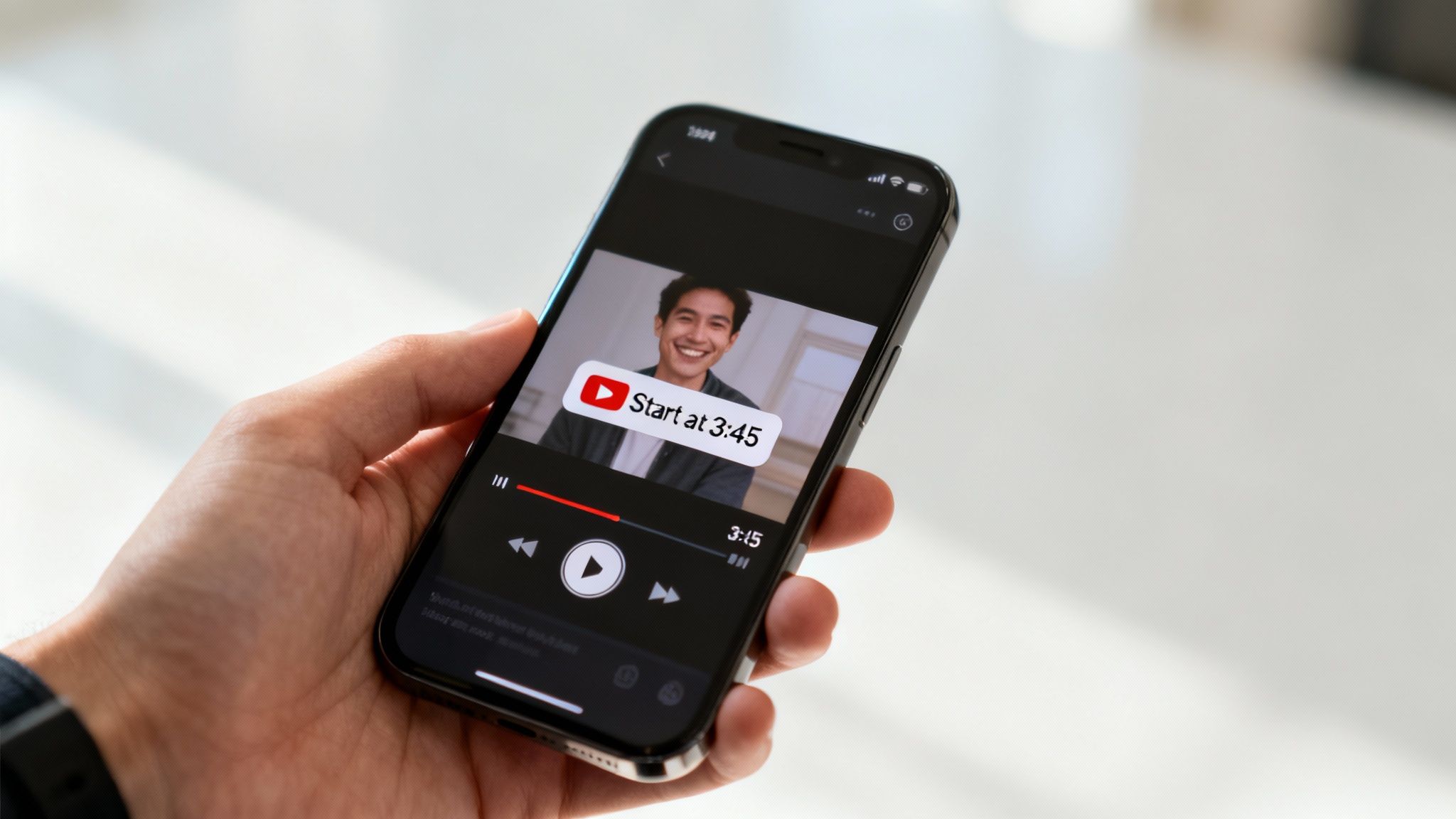
Timestamping lets you cut through the noise and send your audience straight to the most impactful, relevant, or funny part of your video. It's a simple trick that respects their time and makes sure your key message lands perfectly. For content creators, YouTubers, and marketers transitioning from hobbyist to professional, this isn't just a convenience—it's a massive strategic advantage.
When you master this simple skill, you can turn passive viewers into genuinely engaged audience members. It gives you the power to:
- Highlight Key Arguments: Drive people directly to a crucial product feature, a powerful statement in an interview, or a critical data point in a presentation.
- Increase Engagement: Pointing to the exact "aha!" moment makes your content far more shareable and memorable, which naturally boosts interaction and views.
- Improve Communication: It just eliminates friction. No more confusing back-and-forth when you're referencing specific info in emails, social media posts, or support articles.
Reignite Your Content Library and Create New Value
For professional creators, podcasters, and publishers sitting on a growing library of content, timestamping is fundamental. It's the first step in slicing up long-form videos into bite-sized, shareable clips that can take on a life of their own across multiple platforms. It goes beyond just sharing moments; timestamps are essential when you need to easily figure out how to take clips from a YouTube video.
Think of each timestamp as a gateway. It transforms a single, long video into dozens of potential entry points, each tailored to a specific audience or purpose. This maximizes the return on your production efforts and helps you create infinite content value.
Of course, understanding how your audience actually interacts with these specific moments is the next piece of the puzzle. You can learn more about how to analyze content performance to see which clips are truly resonating. That data helps you organize your library around successful concepts and even breathe new life into older content for new campaigns.
Adding a Timestamp the Easy Way: Right From YouTube
Let's start with the simplest method out there: using YouTube's own built-in sharing feature. It’s incredibly intuitive and works the same whether you're on a desktop or fumbling with your phone. This is the go-to for a reason.
First, pull up the YouTube video you want to share. Play it or scrub through until you land on the exact moment you want someone to see. Once you've paused it right there, look for the Share button sitting just below the video player.
Give that a click, and a new window will pop up. At the bottom, you'll spot a small checkbox next to Start at, followed by the precise timecode where you paused. Just tick that box. That's it. YouTube automatically rejiggers the link for you.
What’s Happening in the URL?
When you check that "Start at" box, YouTube tacks a special bit of code onto the end of the video's URL. This is called a URL parameter, and it looks like ?t= or &t=, followed by the start time converted into total seconds.
So, if you want a link to start at 1 minute and 30 seconds, the parameter will be ?t=90. This tiny addition is the instruction that tells a web browser to jump straight to that point in the video.
This simple but powerful feature, rolled out around 2012, completely changed how we reference long-form video. It became a standard so quickly that a 2016 analysis found 38% of digital news outlets were already using timestamped links to guide readers to specific segments.
This isn't just a neat trick; it has a real impact on engagement. Studies have shown that pages using timestamped video links can see visitor dwell time increase by 12–18%. It makes perfect sense, especially with mobile viewing on the rise. It’s far more effective to drop someone right into the action than to make them struggle to find a specific moment on a tiny screen. You can dig into more YouTube statistics and user behavior insights if you're curious.
All that's left for you to do is copy that new, timestamped link and paste it wherever you need it—an email, a social media post, a blog article, you name it. The result is a clean, direct link that saves everyone time and makes your point instantly.
How to Manually Create Timestamped YouTube Links
Sometimes you just need to quickly fire off a link to a specific moment in a YouTube video without going back to the page and fiddling with the share options. This is where manually editing the URL comes in clutch. It’s a fast, powerful way to get it done, giving you total control over where your audience lands.
The whole trick is knowing what to add to the end of the video’s URL. You're basically tacking on a small bit of code.
If the URL is clean (like youtube.com/watch?v=VIDEO_ID), you’ll add ?t= to the end. But if the URL already has a question mark in it—which you'll often see in links shared from playlists—you need to use an ampersand instead: &t=. Getting this right is the difference between a link that works and one that doesn't.
This visual guide breaks down the simple, built-in way YouTube lets you do this, which is a great starting point.
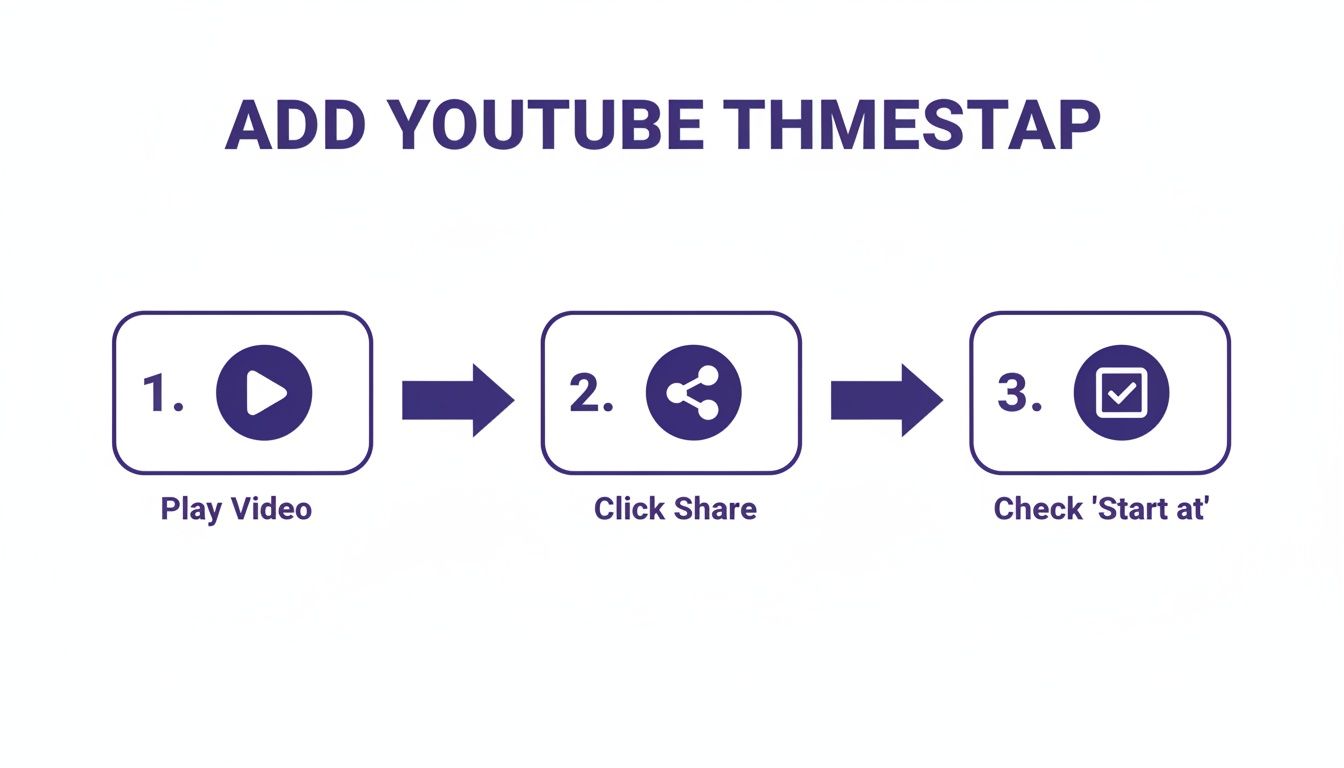
While the graphic shows the automated method, it helps visualize what we're doing by editing the URL ourselves.
Formatting the Time Parameter
Okay, so you’ve got your ?t= or &t=. Now what? You need to tell YouTube when to start the video. The time parameter can be formatted in two ways, either using total seconds or a combination of minutes and seconds.
For total seconds, if you want the video to jump to 2 minutes and 15 seconds, you just do a quick calculation: (2 minutes * 60) + 15 seconds = 135 seconds.
Alternatively, you can just write it out as 2m15s. Both get you to the same place.
YouTube Timestamp URL Parameter Formats
If you're building a link from scratch, knowing the correct URL parameter is everything. Here's a quick cheat sheet for adding the time parameter manually, whether you're using total seconds or the minutes-and-seconds format.
| Time to Link | Correct Parameter (Total Seconds) | Correct Parameter (Minutes & Seconds) | Example URL |
|---|---|---|---|
| 0:45 | &t=45s |
&t=45s |
...&t=45s |
| 1:30 | &t=90s |
&t=1m30s |
...&t=1m30s |
| 5:10 | &t=310s |
&t=5m10s |
...&t=5m10s |
| 12:05 | &t=725s |
&t=12m5s |
...&t=12m5s |
| 1:02:30 | &t=3750s |
&t=1h2m30s |
...&t=1h2m30s |
While using just the number (e.g., &t=70) often works, it's best practice to add the "s" for seconds or use the "m" and "s" format. It makes the parameter explicit and is less likely to break.
Once you master this manual method, you can generate precise links on the fly for documents, emails, or social posts. It makes your content library so much more flexible.
For creators looking to provide even better navigation within the video itself, the next step is using chapters. Our guide to adding chapters to your YouTube video walks you through creating a clickable table of contents right in your video's description. It’s a fantastic tool for viewer experience and SEO.
Using Timestamps in Your Content Strategy
Knowing how to add a timestamp to a YouTube link is more than just a neat trick. It’s a strategic move that lets you guide your audience with pinpoint accuracy. For creators, publishers, and marketers sitting on a mountain of content, timestamps are your best friend for organizing, repurposing, and ultimately, making money with your work.
You’re essentially transforming a passive video archive into an active, high-performing asset.
One of the best ways to put this into practice is by creating YouTube Chapters. It’s surprisingly simple—all you have to do is list out timestamps with short, punchy descriptions right in your video’s main description box. Just remember, the first timestamp must always be 00:00.
When you get this right, YouTube creates a clickable, segmented timeline for your video. It’s basically a table of contents that lets viewers skip directly to the parts they care about. This small touch can dramatically improve the viewing experience and, on longer videos, often boosts overall watch time and engagement.
Boost Your Visibility with Chapters and SEO
The payoff for using chapters goes far beyond just making your video easier to navigate on YouTube. Google's algorithms are smart enough to read these timestamp descriptions and often feature them as "Key Moments" directly in the search results.
This means someone Googling a specific topic you covered could get a direct link to that exact segment of your video. Think about that for a second.
By breaking your video into logical, keyword-rich chapters, you're essentially creating multiple entry points for search engines to discover and rank your content. Each chapter title becomes a micro-opportunity for SEO.
This is a non-negotiable tactic for any storyteller or content marketer serious about growth. If you want to dive deeper into how search engines work, check out our guide on optimizing content for search engines. It’s a game-changer for getting discovered.
Repurpose Content with Precision
Timestamped links are also a powerhouse for upcycling your video library across other platforms. Instead of just dropping a generic link to a 30-minute video and hoping people find the good stuff, you can send them straight to a high-impact moment.
Just imagine the possibilities:
- Blog Posts: You write an article and embed a video. Instead of making readers scrub through it, use a timestamped link to start the video at the exact moment you discuss the article's main point.
- Social Media: You share a powerful quote or a surprising statistic on Twitter or Instagram. The link in your post? It takes followers directly to that soundbite in the video.
- Support Articles: A customer has a common question. You can answer it by linking them to the precise point in a tutorial video that shows them the solution. No more "skip to 14:32."
This approach lets you get so much more mileage out of every single video you produce. It breathes new life into your older content and lets you engage different parts of your audience with perfectly tailored highlights.
Best Practices for Sharing Your Timestamped Links
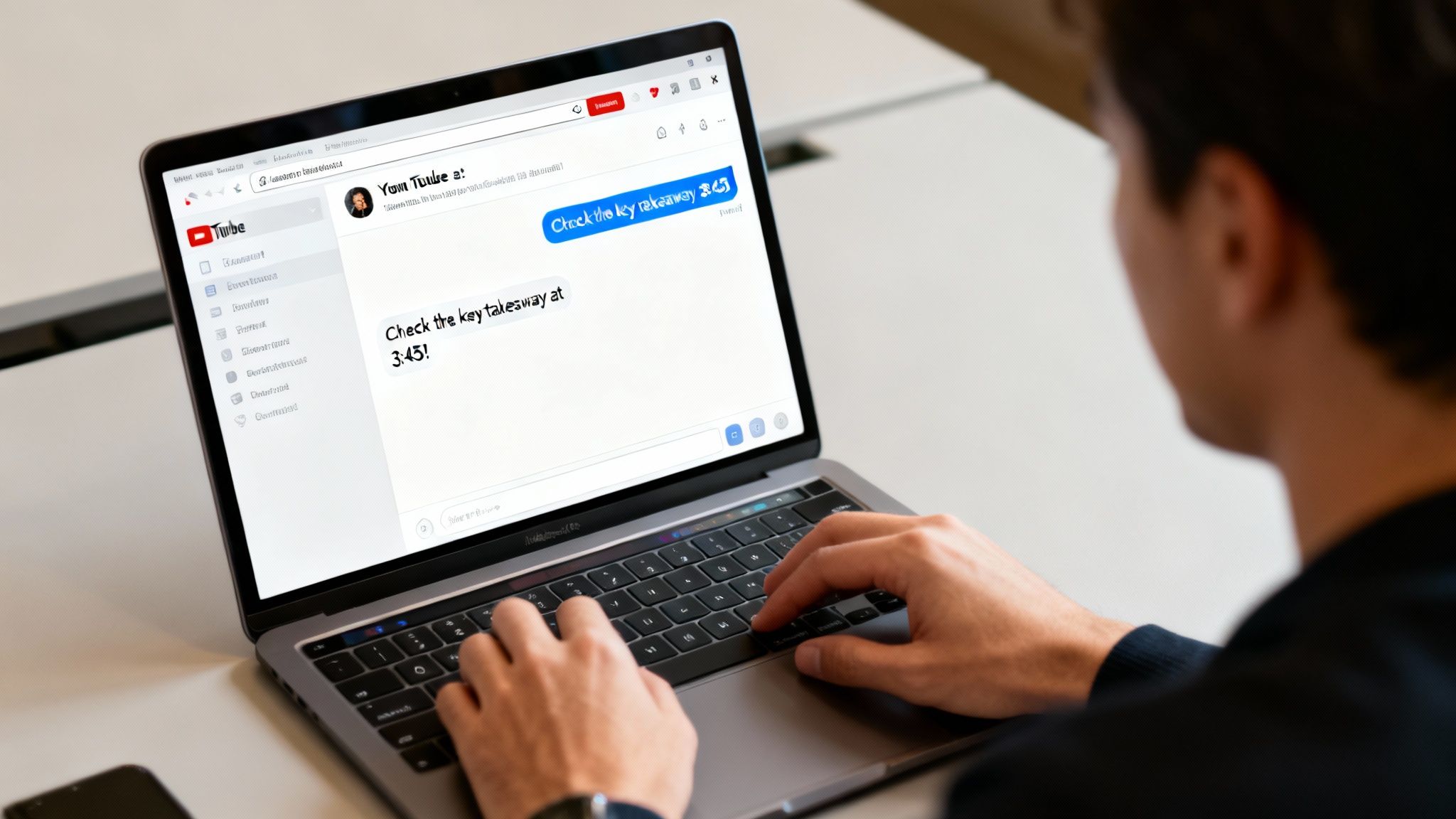
Alright, so you've got your link. But just dropping it into a chat or an email without any context is a rookie move. To get someone to actually click, you need to tell them why that specific moment is worth their time. Think of it as a mini-trailer for the clip.
A little framing goes a long way. Something as simple as, "Check out the key takeaway at 3:45!" or "The moment the debate gets interesting is right here at 12:02," gives people a reason to care. You're turning a generic URL into a can't-miss invitation.
This little bit of messaging is basically your headline, and it’s what separates a click from a scroll-past. If you want to get better at writing these kinds of compelling hooks, dipping into the fundamentals of copywriting for a website can really sharpen your skills.
Always Test Your Link Before You Send It
This is a big one. Before you fire off that link to your team, your client, or your entire social media following, take five seconds to test it. Just copy the link, open an incognito browser window, and paste it in. Does it jump to the right spot? Perfect.
This quick check saves you from the classic "oops, wrong link" follow-up message. It's also smart because different platforms can be a bit quirky with how they handle URLs.
From my experience:
- Slack and Email: These are usually rock-solid. Timestamp parameters almost always work flawlessly, making them great for professional chats and collaboration.
- X (Twitter) and Facebook: Social media can be tricky. Sometimes they strip out parameters or mess with redirects, especially on mobile apps. A quick test ensures your audience lands exactly where you intended.
Pro Tip: When you share a timestamped link, your goal is to make it as easy as possible for someone to get straight to the good stuff. A quick test and a line of context are the best tools you have to make that happen.
By adding a little context and doing a quick check, you make sure all your effort to add a timestamp to a YouTube link actually pays off. You'll see better engagement and have a much happier audience.
Troubleshooting Common YouTube Timestamp Issues
Even with something as straightforward as a timestamp, things can go sideways. If you’ve carefully crafted a link to a specific moment in a YouTube video and it just loads from the beginning, you’re not alone. Don't worry, it's almost always a quick fix.
The most common culprit is a tiny detail in the URL itself. A standard YouTube link can only have one question mark (?). If the link you’re using already has one—often because of other parameters like ?feature=share—you need to add your timestamp using an ampersand (&).
So, instead of &t=, you’d use ?t=. Get that mixed up, and the link will break every time.
Common Questions and Quick Fixes
Sometimes the link is perfect, but the platform you share it on messes it up. I've seen email clients and social media apps automatically shorten or reformat URLs, stripping out the very timestamp you added. A good habit is to always test your link in a private browser window before you blast it out to your audience.
Here are a few other frustratingly common scenarios I see all the time:
- Timestamp ignored on mobile? This happens a lot. Social media apps can be weird about how they handle YouTube links. I’ve found that using the full
youtube.comURL is far more reliable than the shortenedyoutu.beversion. The shorter one is clean, but apps often fail to correctly interpret the timestamp parameter attached to it. Stick to the full version to be safe. - Embedded videos not starting at the right time? Ah, the embed code. It plays by slightly different rules. When you’re working with the
<iframe>code, you need to add?start=SECONDSto the end of the URL inside thesrcattribute. Notice it uses "start" instead of "t," and it only accepts the time in total seconds. So,1m30sbecomesstart=90. - Chapters not appearing? You've added timestamps to your video description, but they aren't turning into those slick, clickable chapters. Double-check your formatting against YouTube's rules. You absolutely must start with a
00:00timestamp, you need at least three timestamps in your list, and each chapter has to be a minimum of 10 seconds long.
Getting these small details right transforms a frustrating experience into a seamless one. It ensures your audience lands exactly where you intend, preserving the impact of the moment you wanted to share.
Mastering timestamps helps you get more value from your content library. With Contesimal, you can take that a step further by analyzing your entire video archive to discover patterns, find new content opportunities, and repurpose your best moments with AI-powered tools that help you and your team collaborate. Organize. Understand. Take Action. Unlock your content's true potential at https://contesimal.ai.