
Your inbox probably looks like a creator business in motion. Brand outreach sits next to fan replies. A contract update lands beside a podcast guest request. An editor asks for approval on a thumbnail while an invoice thread disappears under three newsletters you meant to read.
That mess isn't always a discipline problem. Often, it's proof that your work has real surface area now.
Most creators think of email as admin. I think that's too small. Email is often your first content library. It's where ideas arrive, deals progress, assets get approved, collaborations stall, and revenue conversations leave a paper trail. If you can't organize that stream, it's hard to organize a larger system later, whether that's a video archive, a podcast catalog, or a cross-platform editorial engine.
Why Your Inbox Is Your First Content Library
A creator's inbox holds more than messages. It holds business context.
One thread contains the sponsor brief that shapes a video. Another has audience feedback that turns into a newsletter angle. A third contains notes on a rough cut, then a pricing discussion, then a contract revision. If those live as random emails, you react all day. If they're labeled well, they become a searchable operating system.
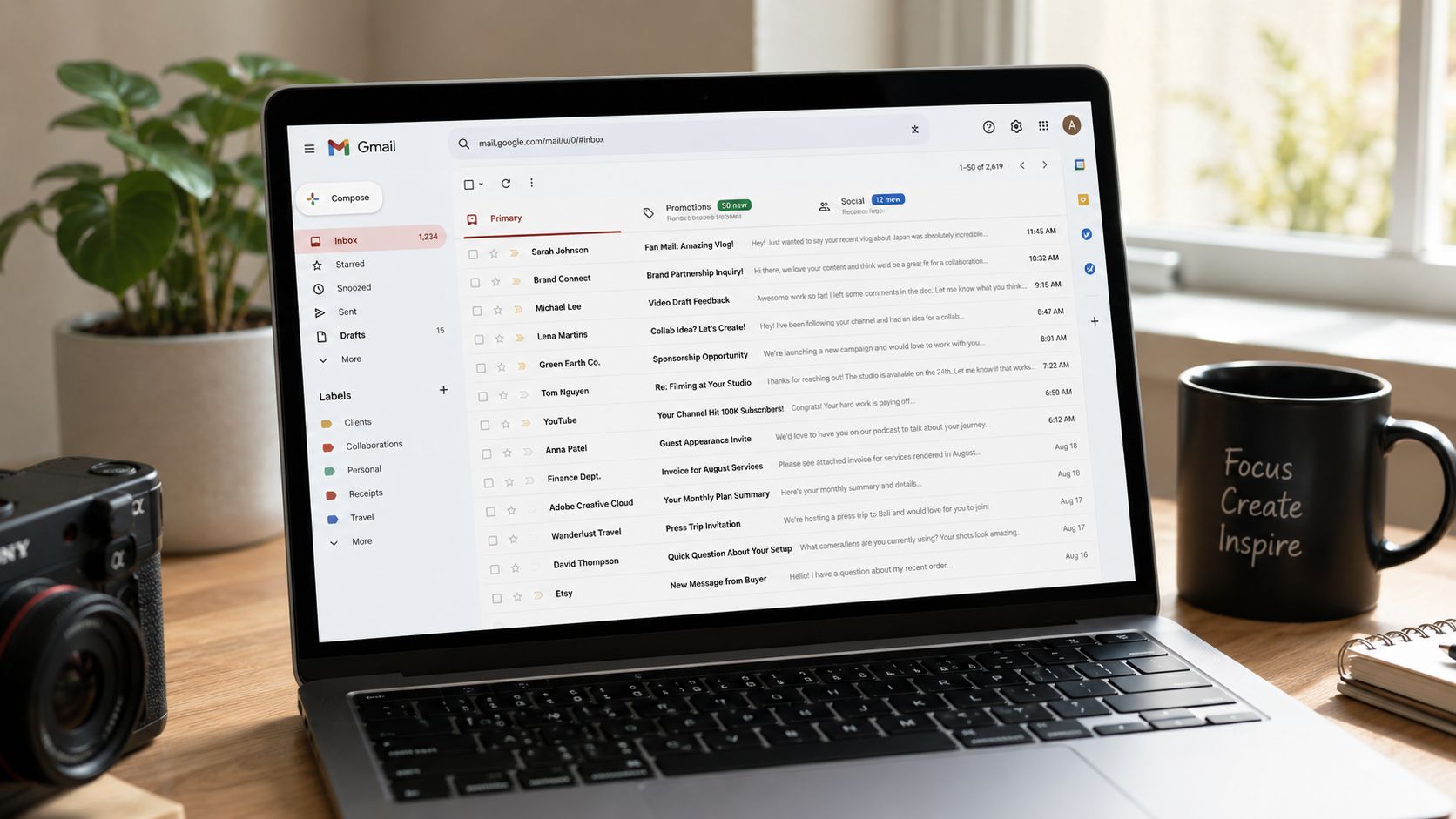
Email is where your creative work becomes operational
Creators usually get serious about organization at the wrong moment. They wait until launches feel messy, approvals get missed, or tax season turns into archaeology.
Gmail labels fix that upstream. They let you tag what an email is, what it relates to, and what action it needs. That's different from just "cleaning up your inbox." It's closer to building metadata around your work.
A few examples:
- Project context for script drafts, revision notes, and asset approvals
- Revenue context for sponsors, invoices, contracts, and payment threads
- Audience context for testimonials, recurring questions, community insights, and press mentions
- Research context for articles, references, trend notes, and source material
That shift matters. The moment you treat your inbox like a living archive instead of a pile, you start thinking like someone building a durable media business.
Organization reduces friction before it saves time
The first payoff isn't speed. It's clarity.
When your labels match the way your business runs, you stop wondering where things went. You know where to look for active deals, stalled approvals, and reusable ideas. That's one reason organized systems can reduce stress through effective organization. They remove low-grade uncertainty from your day.
A chaotic inbox isn't neutral. It taxes decision-making every time you scan it.
This is also why creators who want more value from old work should care about email sooner than they think. Your inbox often contains the raw material for repurposing. The sponsor brief can inform a case study. The audience question can become a short-form clip. The rejected title ideas can become future hooks. If you want a broader framework for that thinking, this piece on mining your content library for fresh ideas is worth reading after you set up your inbox.
Building Your Label System From Scratch
Many users build labels in Gmail the same way they organize a junk drawer. They add labels only when pain appears. That creates a long sidebar full of random categories that made sense once and help nobody now.
A better approach is to build labels around functions, not moods.
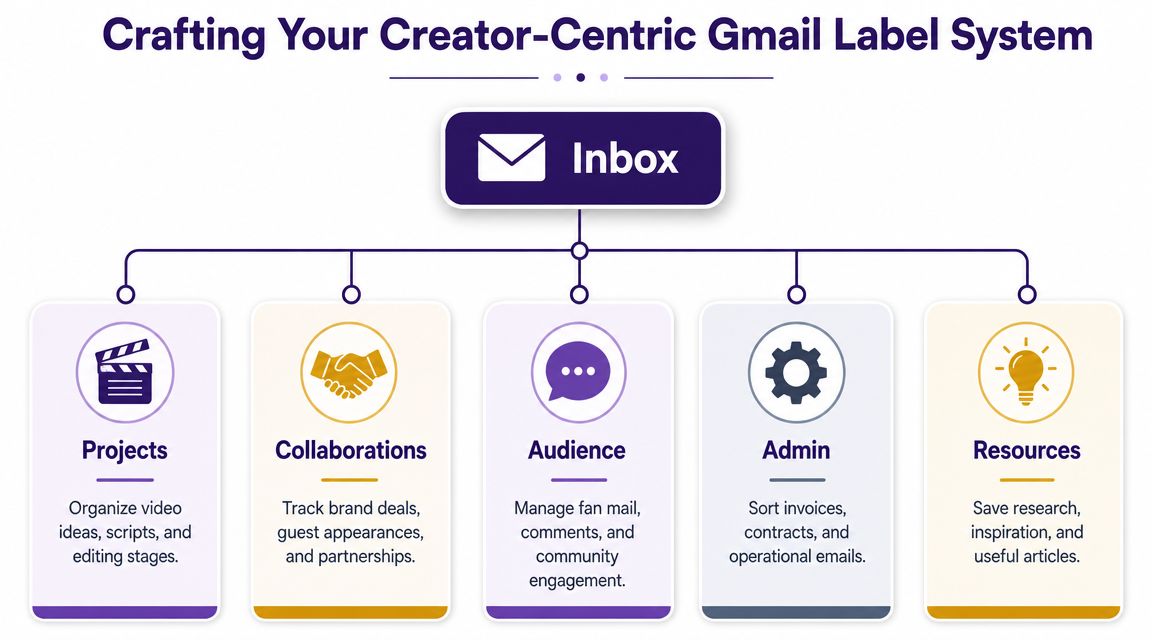
Start with five top-level buckets
For most creators, these categories are enough:
| Label group | What goes there | Example labels |
|---|---|---|
| Projects | Content in production | [Project] YouTube Essay, [Project] Podcast Season, [Project] Course Launch |
| Collaborations | External relationships | [Collab] Sponsor, [Collab] Guest, [Collab] Partner |
| Audience | Community and inbound signals | [Audience] Fan Mail, [Audience] Testimonials, [Audience] Press |
| Admin | Money and operations | [Admin] Invoices, [Admin] Contracts, [Admin] Receipts |
| Resources | Inputs you may reuse | [Resource] Research, [Resource] Inspiration, [Resource] Tools |
This works because each bucket answers a different business question. Projects tell you what you're making. Collaborations tell you who you're making it with. Admin keeps the business legible. Resources keep good inputs from vanishing.
Use names that support action
The label itself should tell you what to do or how to think.
Weak labels look like this:
- Misc
- Important
- Follow up
- Client stuff
Useful labels look like this:
- [Project] Blue-Chip Sponsor
- [Status] Waiting for Feedback
- [Admin] Invoices Q3
- [Audience] Testimonials
- [Resource] Podcast Research
Those labels are specific enough to sort quickly and broad enough to stay useful.
Practical rule: if a label won't make sense in three months, rename it now.
Why Gmail labels beat folders for creator work
Gmail's structure matters here. Google documents that labels have had a many-to-many relationship with messages and threads since Gmail launched in 2004. One email can carry multiple labels, and one label can apply to many emails. That's why labels in Gmail feel more flexible than old folder systems.
That flexibility is the whole game for creators.
A single thread might be:
- A sponsor negotiation
- Part of a video project
- Waiting on legal review
- Related to invoicing later
In a folder system, you'd have to choose one home. In Gmail, the same thread can sit under all the categories that matter without duplication.
Keep the first version simple
You don't need an elaborate taxonomy on day one. Build the smallest system that reflects your actual work.
I recommend this sequence:
- Create top-level labels for Projects, Collaborations, Audience, Admin, and Resources.
- Add one layer of sub-labels only where traffic is consistent.
- Color-code sparingly so urgent or revenue-critical categories stand out.
- Apply labels for two weeks before adding anything new.
- Delete or merge weak labels that never earn their place.
What doesn't work is over-designing. If you create a label for every single client, guest, topic, and asset before patterns emerge, your sidebar turns into a museum of intentions.
Automating Your Workflow with Filters and Rules
Manual labeling is useful. Automated labeling is where labels in Gmail start acting like infrastructure.
If your inbox gets real volume, don't rely on discipline alone. Let Gmail route recurring email types for you.
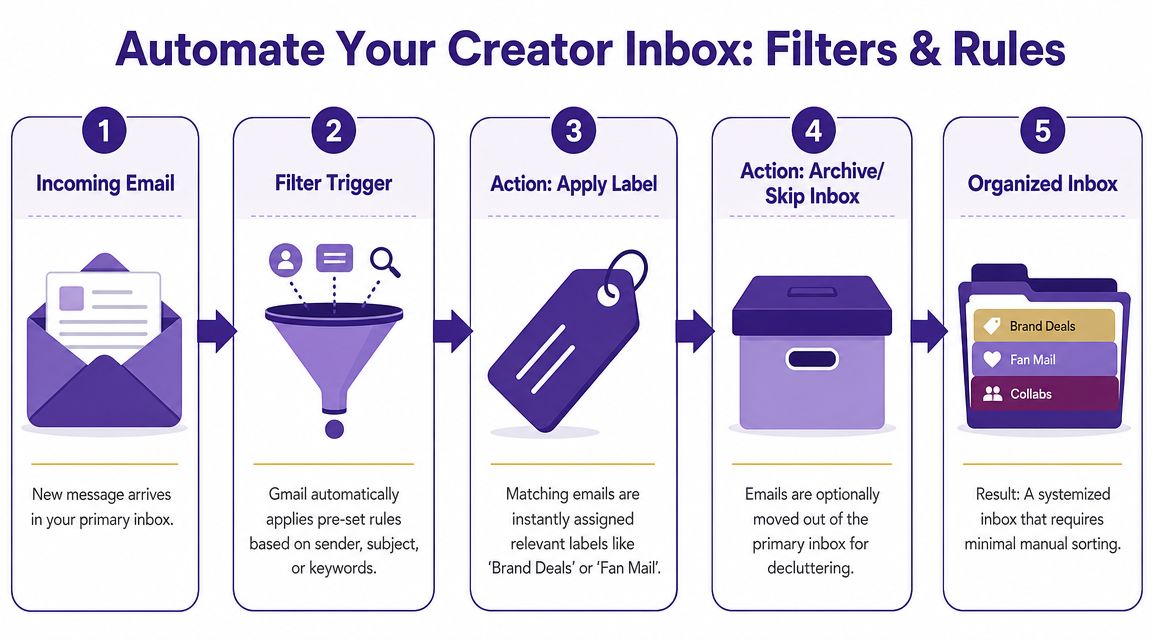
Build filters around predictable patterns
Google's help documentation allows users to create filters based on sender, subject, keywords, and other criteria, then automatically apply a label on arrival. Labels can also be nested, and Gmail supports up to 5,000 labels, which gives larger systems room to grow.
For creators, the best filters usually map to repeatable inbound streams.
Before filters:
- You scan every email manually.
- You keep re-reading platform notifications.
- You lose financial threads in the main inbox.
- You feel busy before you've done any creative work.
After filters:
- Platform updates get labeled automatically.
- Finance threads bypass the visual clutter.
- Sponsor domains get grouped together.
- Your inbox becomes a place for decisions, not sorting.
A few high-value examples:
- YouTube notifications routed to a platform label
- Invoice or payment subjects sent to a finance label
- Brand domain emails tagged to the relevant sponsor label
- Newsletter subscriptions labeled as reading material instead of competing with real work
- Form submissions or booking replies routed by project or offer
Here's a useful walkthrough if you're tightening the rest of your process too: editorial workflow management software.
To see the mechanics in action, this video gives a straightforward visual reference.
Nest labels so the sidebar stays usable
A strong label system can still become annoying if the sidebar turns into a wall of text.
Nesting solves that. Instead of listing every active item at the top level, group them under parent labels:
- Sponsors
- Brand A
- Brand B
- Contracts
- Projects
- YouTube
- Podcast
- Newsletter
- Admin
- Invoices
- Taxes
- Legal
That gives you detail without noise.
The best automation doesn't create more categories. It removes repeated decisions.
What works and what breaks
The sweet spot is a filter system that handles obvious traffic while leaving judgment calls to you.
What works well:
- Stable senders like platforms, recurring vendors, and known partners
- Clear subject cues like invoice, contract, revision, payment
- Domain-based rules for sponsors, agencies, or team tools
What tends to fail:
- Overbroad keywords that sweep unrelated emails into the wrong label
- Too many filters at once, making troubleshooting annoying
- No review habit, so old rules keep sorting things badly for months
Start with a few filters that remove repetitive inbox friction. Then refine. Good automation feels invisible.
Advanced Label Strategies for Pro Creators
A basic label setup helps you stay organized. An advanced one helps you scale work across people, priorities, and decisions.
That's the line between using Gmail as a mailbox and using it as a workflow layer.
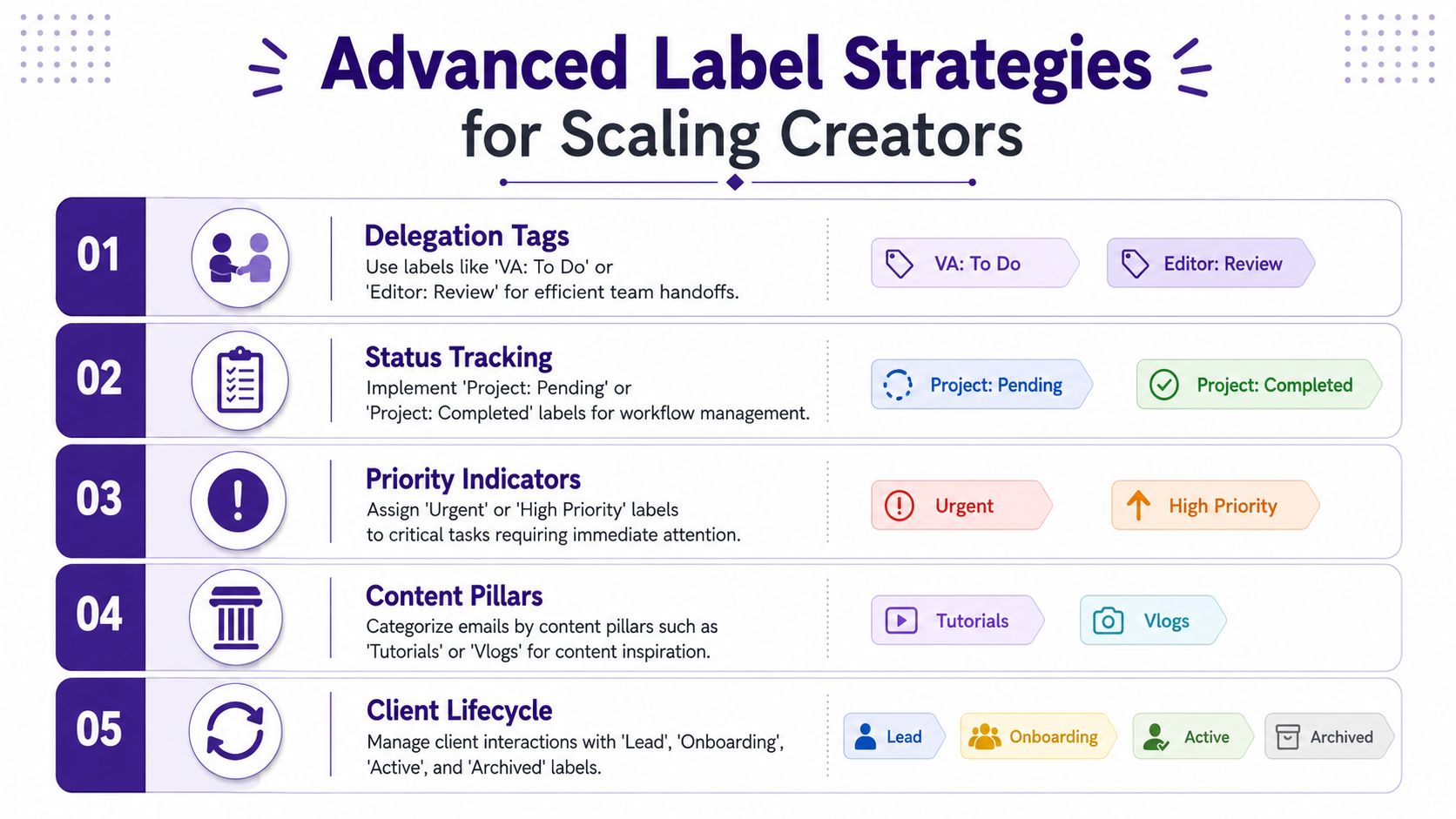
Add status labels, not just topic labels
Topic labels tell you what something is about. Status labels tell you what happens next.
That's a big upgrade.
Try a status set like this:
- [Action] To Do
- [Action] Waiting for Reply
- [Action] Review
- [Action] Approved
- [Action] Done
Now a thread isn't just "Sponsor" or "Podcast Guest." It's "Sponsor + Waiting for Reply" or "Podcast Guest + Review." That combination makes triage faster because you're not opening emails just to remember where they stand.
Build a team glossary if anyone touches the inbox
The moment a virtual assistant, producer, editor, or operations lead gets involved, labels need shared meaning.
Without that, one person uses "Urgent" for money. Another uses it for deadlines. A third never touches it. The label becomes decoration.
A simple team glossary should define:
| Label type | Team question it answers | Example |
|---|---|---|
| Role label | Who owns this next | VA, Editor, Founder |
| Status label | What stage it's in | To Do, Waiting, Approved |
| Business label | What area it belongs to | Sponsor, Project, Admin |
| Priority label | How fast it matters | High Priority |
| Lifecycle label | Where the relationship stands | Lead, Active, Archived |
You don't need a huge operations manual. You need agreement.
If a delegated inbox has labels but no naming standard, the team doesn't have a system. It has preferences.
Use labels as lightweight governance
Most creators won't need formal compliance controls. But the logic behind advanced labels points in that direction.
Google announced that data classification labels for Gmail became generally available on April 23, 2025, and that admins can create and manage labels used with policies such as a required "Confidential" label in enterprise environments, according to Google Workspace Updates. That's a meaningful signal. Labels aren't just personal organization anymore. At scale, they're part of governance.
For creators, the practical takeaway is simple. If you handle contracts, unreleased assets, pricing details, or sensitive partner information, your labels should reflect care and access boundaries.
The professional move
Pro creators don't only organize by project. They organize by responsibility, state, and sensitivity.
That's what makes labels useful during growth spurts:
- when offers increase
- when approvals involve more people
- when old threads need to be found fast
- when operational mistakes start costing trust
At that point, labels stop being cosmetic. They become operating discipline.
Managing Labels on Mobile and Other Email Apps
A Gmail system only works if it survives life away from your desk. For most creators, that means approving, flagging, and replying from a phone between recordings, meetings, and travel.
The good news is that a desktop-built label structure carries over well inside Gmail's own mobile app. The bad news is that third-party mail apps don't always respect Gmail's logic the same way.
What feels different on mobile
On mobile, labels are still useful, but the experience is naturally narrower. It's easier to apply a label than to redesign your taxonomy. That's why the heavy setup work belongs on desktop.
Use your phone for quick actions:
- Apply existing labels after a meeting or call
- Archive low-value threads once the right label is attached
- Check status labels before replying on the go
- Triage by parent label when you need a fast snapshot of work
Use desktop for structural work:
- renaming labels
- nesting and cleanup
- revising filters
- auditing clutter in the sidebar
If you want your wider systems to hold together across tools, these metadata management best practices are useful beyond email too.
Why Apple Mail and Outlook can feel odd
Third-party email apps often interpret Gmail labels as if they were folders. That's close enough for casual use, but it can flatten the advantages of Gmail's native structure.
The usual friction points look like this:
- A message may appear under something that looks like a folder path
- Applying multiple labels may feel less natural than in Gmail itself
- Some actions sync in ways that are harder to predict if you switch between apps all day
That's why I recommend this rule of thumb:
| Task | Best place to do it |
|---|---|
| Create and manage labels | Gmail desktop |
| Apply labels quickly | Gmail mobile app |
| Deep search and reorganization | Gmail desktop |
| Casual reading and quick replies in other apps | Apple Mail or Outlook if you prefer |
Keep one source of truth
The mistake isn't using multiple apps. The mistake is pretending they all behave the same.
If Gmail is where your labels live, treat Gmail as the source of truth for organization. Use other apps for convenience if you like them, but return to Gmail when structure matters. That's how you keep the system stable instead of letting each device invent a slightly different version of your workflow.
From Inbox Zero to Infinite Content Value
Inbox Zero is fine. But on its own, it's just a cleanliness goal.
A better goal is building an inbox that helps you find, classify, and reuse the material flowing through your business. That's where labels in Gmail become more than tidy tags. They become the first layer of a professional content system.
The bigger win isn't a cleaner inbox
When you label sponsor threads, guest outreach, research notes, feedback loops, and admin conversations correctly, you're practicing a bigger discipline. You're learning how to structure unorganized information so it can produce value later.
That's the same mindset strong creators use across their whole library:
- They organize old interviews so clips can be reused.
- They classify audience questions so future episodes have better prompts.
- They track recurring themes so one strong idea can become a video, a newsletter, and a social series.
An inbox is small compared with a full content archive. But the operating principle is the same. Organize. Understand. Take action.
Start with the narrow system that sits closest to revenue
Your email is where opportunities first become tangible. That's where sponsorships get negotiated, approvals happen, collaborations form, and research gets forwarded before it turns into published work.
So if you want a practical upgrade this week, don't start by overhauling every drive, note app, and content board. Start with labels in Gmail. Build the habit where incoming business already lives.
If you're still refining your overall process, these tips on how to improve your email workflow pair well with a label-first setup.
A creator business gets easier to grow when information stops arriving as clutter and starts arriving as structured input.
That shift doesn't feel dramatic on day one. It feels small. A few labels. A few filters. A calmer inbox.
Then the compound effect shows up. You miss less. You find old context faster. You spot reusable ideas sooner. You handle more work without feeling like everything is slipping through your fingers.
And this is the core idea. Labels in Gmail aren't the final system. They're the first one that teaches you how scalable systems function.
If you're ready to apply that same thinking beyond email, Contesimal helps creators and content teams organize, classify, search, and realize new value from larger content libraries. It's a strong next step when your inbox discipline starts expanding into podcasts, videos, articles, research, and collaborative editorial workflows.