
You're usually not trying to “download a Streamable video” for the sake of downloading it.
You're trying to turn a clip into a working asset. Maybe it's a reference for an editor. Maybe it's a reaction insert, a social cut, a lesson example, a research artifact, or a clip you need to archive before the link disappears. That changes the job. The actual question isn't just how to get Streamable to MP4. It's how to get the best usable version without wasting time, trashing quality, or crossing ethical lines you'll regret later.
For creators building a serious content library, every file you save should have a future. If a clip is worth pulling into your workflow, it's worth handling correctly.
Why Downloading Streamable Videos Matters for Creators
A lot of creators hit the same moment. You find a Streamable clip that perfectly supports a segment you're editing. You expect a quick right click, a save prompt, and done. Instead, nothing obvious happens, or the file you get is lower quality than you expected.
That friction exists for a reason. Modern video delivery often uses HLS and DASH, which break video into short chunks, typically 2 to 10 seconds, so players can load only what the viewer is actively watching and adjust quality during playback, as explained in this streaming format guide from Ximilar. When you click around in the browser, you may be interacting with a playlist of segments rather than one clean MP4.
That's why “save video as” fails so often.
Most download problems aren't user error. The platform may not be serving a single downloadable file in the first place.
For creators, this matters beyond one edit. A clip you save today can become part of a future compilation, a short-form remix, a case-study reel, or a research archive for your team. That's the bigger opportunity behind content repurposing adds value. A downloaded video isn't just a convenience. It can become a reusable building block.
There's also a practical publishing angle. Teams in education, nonprofits, and media often need the same core workflow for clipping, archiving, and republishing. If you work in that world, these best methods for church video are a useful parallel because they deal with the same real issue: getting web video into a format people can edit, store, and redeploy.
What creators actually need
A professional workflow usually comes down to three priorities:
- Usable quality so the clip survives editing, reframing, and captions.
- Reliable access so you can retrieve it again if the original link changes.
- Clean organization so the asset doesn't vanish into a downloads folder graveyard.
If you only solve the first ten seconds of the problem, you don't have a workflow. You have a temporary file.
The Fastest Methods for Quick Clips
When speed matters more than perfect control, use the direct methods first. They're not always the best for a long-term archive, but they're often enough for a rough cut, quick reaction, or same-day social edit.
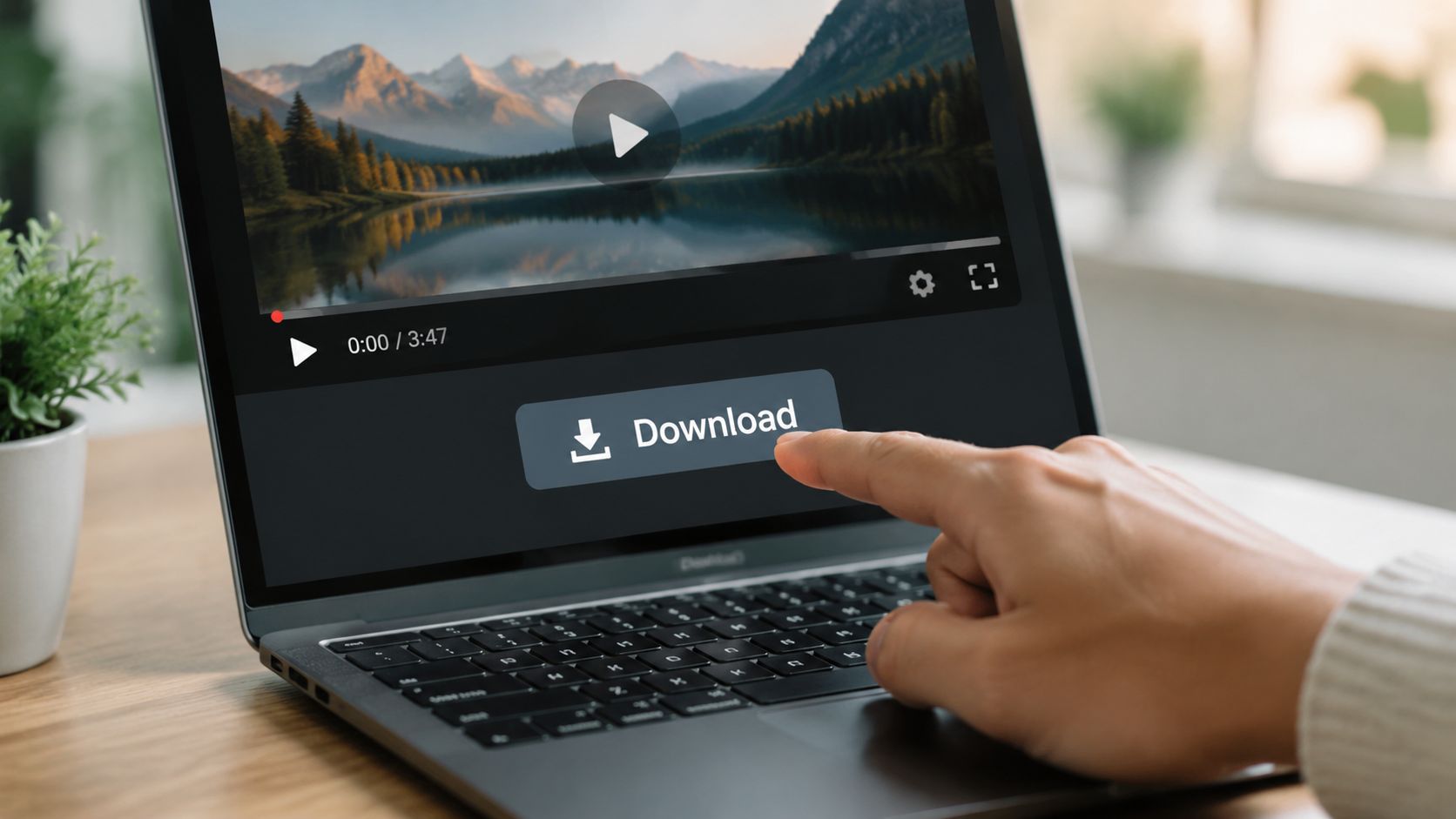
Use the built-in download option first
If the video owner enabled downloads, this is the cleanest route. Streamable's own support says downloads are only available when the original uploader turned them on, and the quality offered may not be the original source file, which matters if you want a high-fidelity archive for repurposing, according to Streamable's download documentation.
That last part is the catch.
If you're downloading for editing, not just watching offline, the available version may be usable but not ideal. It might look fine on playback and still fall apart once you crop, color-adjust, or layer text over it.
Quick check before you save
- Check the menu options. If multiple qualities appear, choose the highest available.
- Open the file in your editor before assuming it's archive-worthy.
- Keep expectations realistic. The downloadable file may be a delivery copy, not a master.
Use browser developer tools when no button appears
This is the fastest semi-technical move, and it often works when a visible download option doesn't.
A simple workflow looks like this:
- Open the Streamable page in your browser.
- Launch Developer Tools.
- Reload the page.
- Look in the Network panel for media requests.
- Find the video file or playlist request.
- Open the direct media URL in a new tab.
- Save the resulting file if the browser exposes it directly.
This method is useful because it shows what the page is requesting. Sometimes that will be a direct MP4. Sometimes it will be a playlist or segmented stream, which means you've hit the limit of the quick approach.
Practical rule: If Developer Tools reveals a direct MP4, save it. If it reveals only segmented playback, move on to a dedicated tool instead of fighting the browser.
When these fast methods are enough
Use them for:
- Reference pulls when an editor just needs the moment on the timeline
- Short-lived campaign work where perfect preservation isn't the priority
- Internal review assets for script notes, approvals, or clip selection
Use something stronger when the clip is strategically important.
That distinction matters. The fastest way to get Streamable to MP4 isn't always the smartest way to build a durable content library.
Dedicated Tools for Reliable High-Quality Downloads
Quick methods are fine until they stop working. That usually happens when the browser only exposes segmented delivery, when you need repeatability, or when the clip matters enough that you don't want guesswork in the chain.
At that point, dedicated tools win.
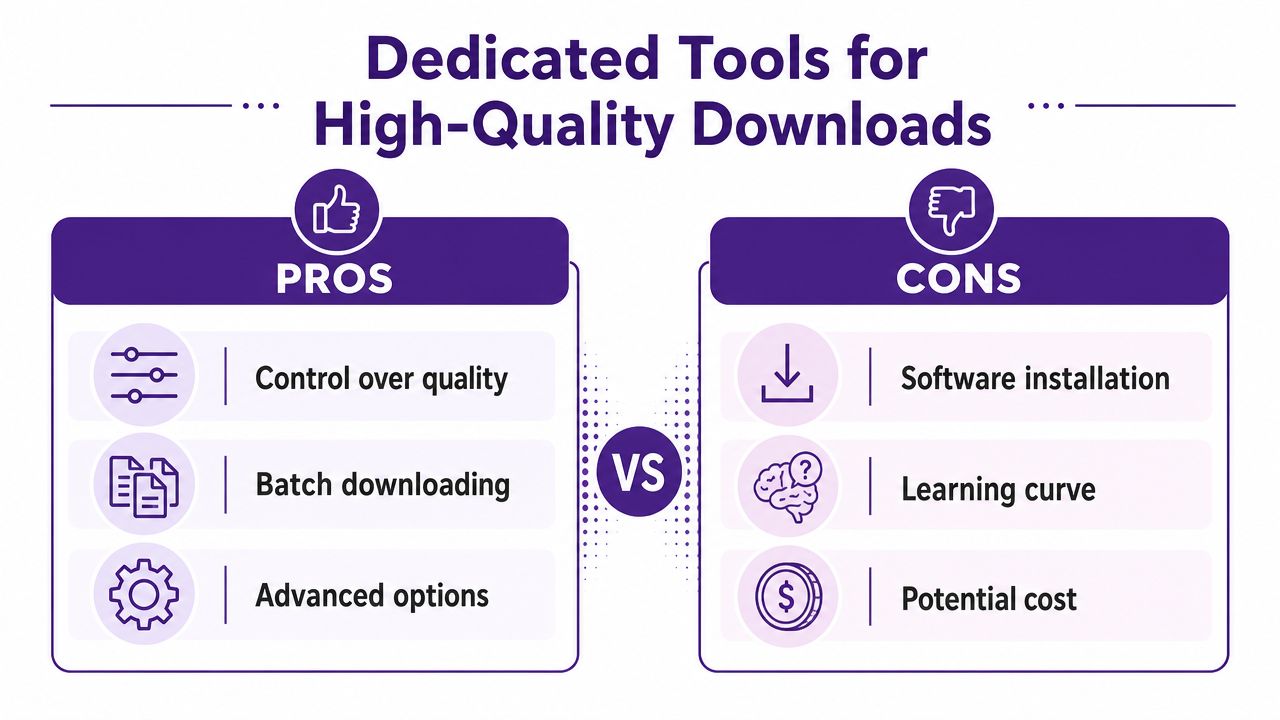
Online converters versus command-line tools
Here's the short version.
| Approach | Good for | Main downside |
|---|---|---|
| Online converter sites | One-off convenience | Weak quality control and trust issues |
| Dedicated software like yt-dlp | Repeatable professional workflows | Setup takes a little effort |
Online converters are tempting because they remove friction. Paste a link, click a button, get a file. But creators usually pay for that convenience in one of three ways: cluttered interfaces, uncertain output quality, or sketchy site behavior.
If you must use one, be picky.
- Watch the page behavior. If every click opens a new tab, leave.
- Avoid fake download buttons. The legitimate action is usually near the URL field, not in the ad blocks.
- Inspect the output immediately. Don't assume the resulting MP4 is the best available version.
Why professionals lean toward yt-dlp
yt-dlp is the kind of tool that looks more intimidating than it is. Once installed, it gives you control. That's the difference.
You can often point it at a video page, let it resolve the actual media, and save the best available file without relying on ad-heavy third-party sites. For teams handling recurring clipping, research pulls, or archive work, that reliability matters more than a flashy interface.
A command-line workflow is also scriptable. If your team regularly archives source material, that's a big advantage. You can create repeatable processes instead of improvising every time.
Why FFmpeg matters in this workflow
A lot of professional download and conversion tools rely on FFmpeg under the hood. One documented streamable MP4 workflow uses H.264 video and AAC audio, then runs a final fast-start step with qtfaststart so metadata moves to the front of the file for immediate web playback, as shown in this FFmpeg streamable MP4 recipe.
That detail sounds small, but it isn't.
An MP4 can be technically valid and still behave poorly online if the metadata sits in the wrong place. Fast-start is one of the reasons some files feel instantly playable and others feel clumsy over the web.
A “streamable MP4” often means a normal MP4 that's been prepared to start playback quickly, not some magical special file type.
What works best in practice
If I were setting up a creator workflow for repeated Streamable to MP4 tasks, I'd separate tools by job:
- Official download for the easiest lawful retrieval
- Developer Tools for quick inspection and direct file grabs
- yt-dlp plus FFmpeg for dependable, repeatable downloads worth archiving
That stack covers most real-world cases without turning every clip retrieval into a research project.
The Screen Recording Fallback Plan
Sometimes the clip won't give you a clean download path. Access is restricted, the page only exposes playback, or the available file isn't retrievable through normal means. When that happens, screen recording becomes the backup plan.
Not the first plan. The backup.
Screen recording introduces another generation of quality loss. You're capturing a playback event rather than obtaining the source file. That means you can pick up compression artifacts, UI contamination, frame inconsistencies, or audio sync issues if your setup is sloppy.
How to do it cleanly
If you're on Mac, QuickTime is enough for simple captures. On Windows, Xbox Game Bar works for basic jobs. If you want more control, OBS Studio is the better tool because it gives you direct control over what you capture and how you frame it.
A clean recording workflow looks like this:
- Play the source at the highest available quality.
- Record at the same visible size you intend to use later.
- Capture system audio, not room audio.
- Hide notifications, tabs, and desktop clutter.
- Trim the beginning and end immediately after capture.
What to prioritize
- Match the source visually. Don't record a small player and expect it to upscale well in editing.
- Monitor the audio path. Bad audio ruins a usable clip faster than slight softness in the image.
- Keep the machine quiet. Close background apps that could trigger stutter during capture.
If your workflow includes a lot of on-screen capture, this guide on screen recording FaceTime is helpful because the same principles apply. Clean frame, clean audio, controlled environment.
Screen recording is acceptable when access is limited. It's a poor substitute for a real source file when the clip is important enough to archive.
When it's still worth doing
This method makes sense when the clip is valuable for commentary, reference, or temporary production use and no safer download option is available. It's less ideal for footage you plan to heavily crop, re-edit, or preserve as a premium asset in your library.
That difference should drive the decision. Don't use a fallback method for material that deserves a first-class source.
Optimizing Your MP4 for Repurposing and Editing
Getting the file is only the midpoint. If you care about future reuse, you need the right file in the right condition.
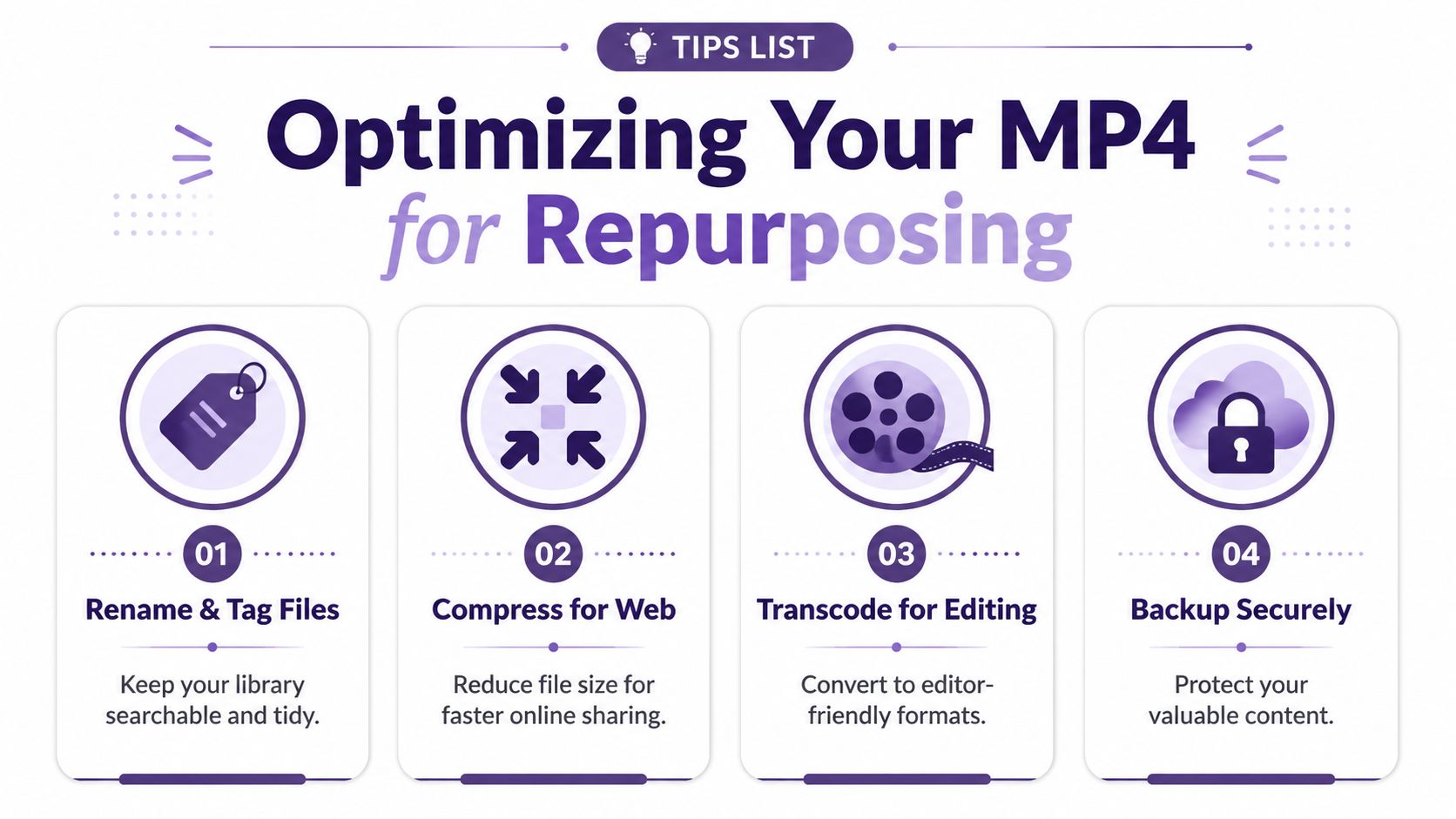
Understand container versus codec
A lot of creators say “I need an MP4” when what they need is a compatible video inside an MP4.
That distinction matters because MP4 is a container, not a codec. For broad compatibility, it should typically contain H.264 video and AAC audio, and the actual playback result depends on how you balance resolution, bitrate, and frame rate, as explained in this creator-focused video compression discussion.
If you ignore that, you can end up with a file that is technically an MP4 but still awkward to edit, upload, or play smoothly.
Choose for the next use, not the current one
Creators often make one of two mistakes:
- They keep a file that's too compressed because it looked fine in the browser.
- They keep a file that's unnecessarily heavy and awkward to move through normal workflows.
The better approach is to ask what the clip needs to survive next. If it's headed into a timeline for reframing, overlays, captions, and exports, preserve enough quality for that. If it's only going into a lightweight internal archive, smaller may be fine.
Lower bitrate reduces file size and can help delivery. Push it too far and you'll see the loss when you edit, not when you first download.
A practical archive mindset
Use this checklist when deciding whether a downloaded file is worth keeping:
- Can it survive a crop for vertical or square formats?
- Does the audio hold up if you normalize, cut, or isolate a section?
- Will your editing software handle it smoothly without extra transcoding?
- Can your team identify it later through naming and metadata?
That last point gets ignored constantly. Good assets become useless when nobody can find them. A strong metadata habit matters more than most creators realize, especially when your library grows. These metadata management best practices are worth applying early before your archive turns into mystery files.
There's also a bigger repurposing angle here. Once a clip is organized and preserved properly, it can support very different editorial uses later. That might mean clipping highlights, building references for long-form scripting, or even preparing assets for workflows that involve sensitive post-production decisions, such as reviewing tools discussed in this guide on uncensor video with AI tools. Different downstream uses demand different file quality standards.
What a smart file workflow looks like
A practical creator stack usually includes:
- A web-friendly copy for publishing and sharing
- An edit-safe copy if the footage has real production value
- Clear names and tags so the clip is searchable months later
That's how Streamable to MP4 becomes more than a download task. It becomes library building.
Managing Your Clips and Respecting Copyright
Once you've got a folder full of MP4s, the next problem shows up fast. You can't monetize chaos.
A clip library becomes valuable when each file carries context: who uploaded it, why you saved it, what rights you have, what project it supports, and whether it's safe to republish. Without that, even great footage turns into legal and editorial friction.
Respect the source
Downloading a video doesn't grant usage rights. If the clip is yours, the path is simple. If it belongs to someone else, pause before you edit, repost, or monetize it.
A practical rule set helps:
- Use your own material freely within your production workflow.
- Get permission when the intended reuse is substantial.
- Credit clearly when attribution is appropriate.
- Don't assume platform availability equals reuse permission.
Fair use can apply in some commentary, criticism, and educational contexts, but it's context-specific. Creators should treat it as a legal standard that needs judgment, not as a blanket excuse.
Turn files into assets
A downloads folder is not a content system. If your team can't search clips by topic, speaker, project, source, or rights status, you're rebuilding your workflow from scratch every time.
The creators who get the most value from archived clips aren't necessarily the ones who download the most. They're the ones who label, sort, and retrieve material quickly enough to reuse it while the idea is still fresh.
A saved clip has potential. A searchable clip has operational value.
That's the line between hobbyist behavior and professional library building.
If you're serious about turning saved clips, old episodes, research assets, and video archives into something your team can reuse, Contesimal is built for that next step. It helps creators and content teams organize libraries, make assets searchable, and uncover new value across existing content so every file you save can support future publishing, collaboration, and revenue.